> ## Documentation Index
> Fetch the complete documentation index at: https://opensource.weam.ai/docs/llms.txt
> Use this file to discover all available pages before exploring further.
# Connections
The Connections section allows you to integrate Weam AI with external tools and services to unlock more functionality and streamline your workflows.
## Setting Up Connections
### Connection Process
1. Navigate to Settings from the sidebar
2. Select "Connections" from the settings menu
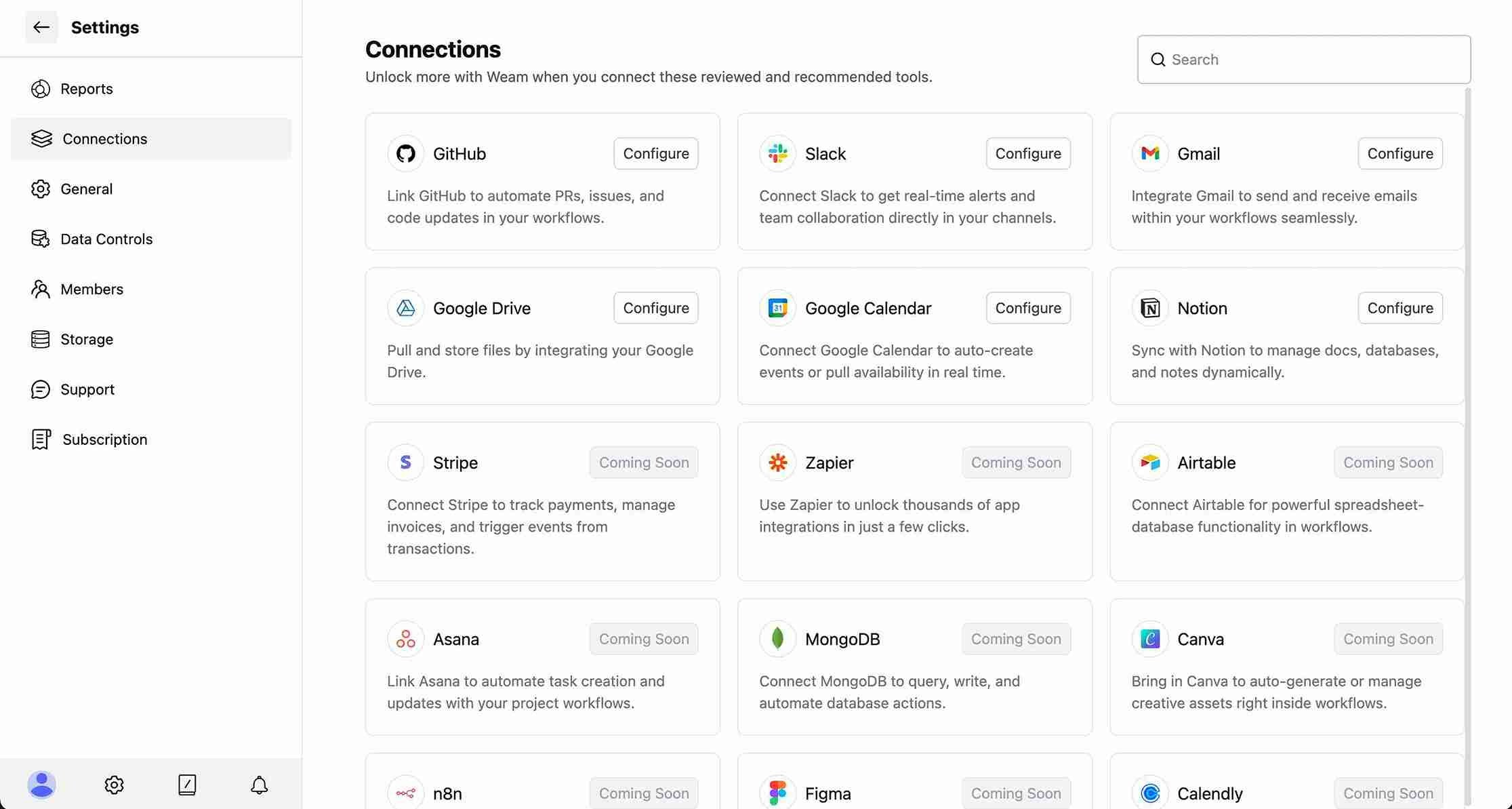 3. Browse the available integrations displayed in the grid
4. Click "Configure" on any available service you want to connect
5. Follow the authentication process in the configuration modal
### Configuration Modal
When clicking "Configure" on an available service, a modal will appear with:
3. Browse the available integrations displayed in the grid
4. Click "Configure" on any available service you want to connect
5. Follow the authentication process in the configuration modal
### Configuration Modal
When clicking "Configure" on an available service, a modal will appear with:
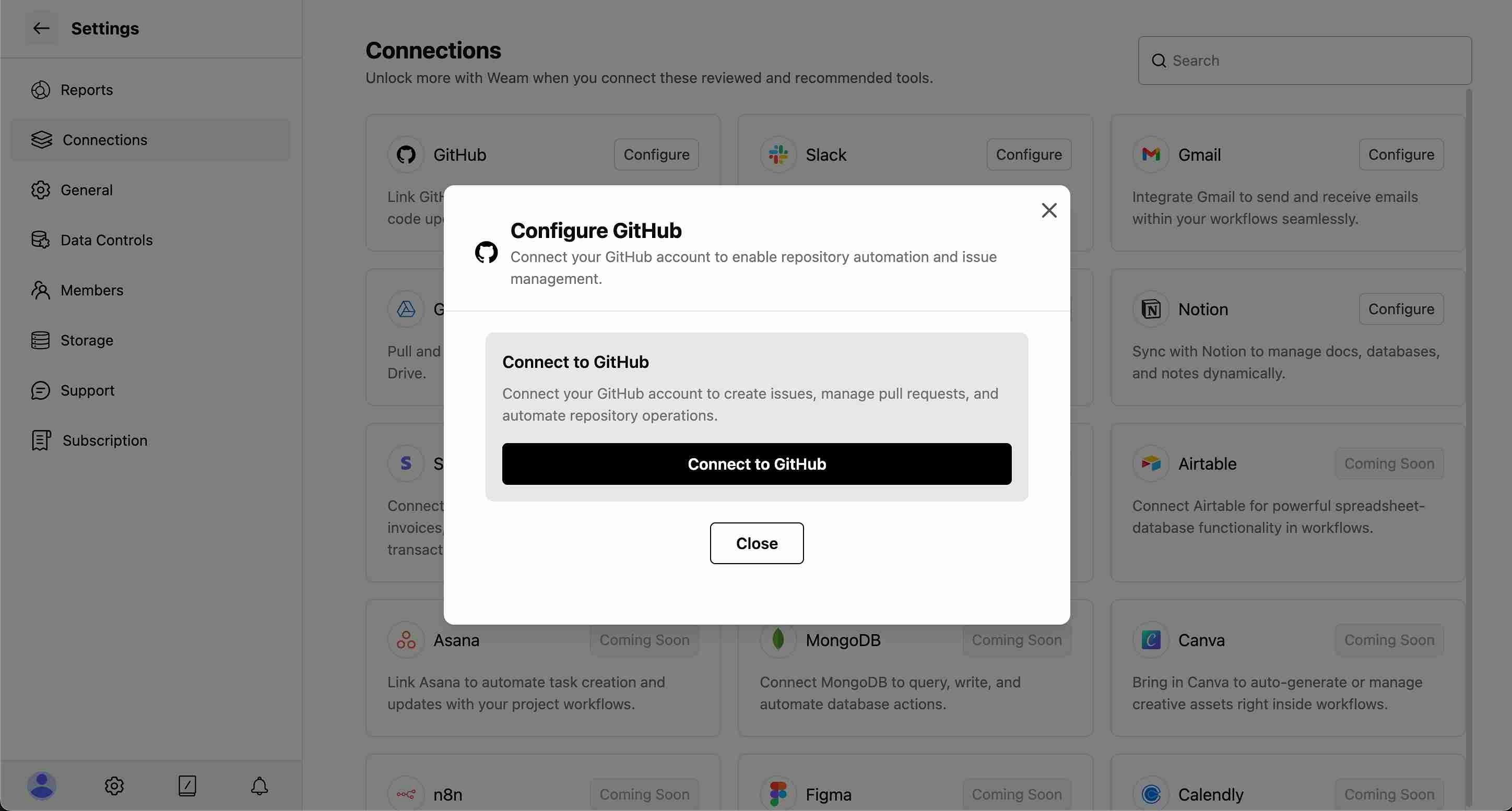 * Service-specific connection instructions
* Authentication requirements
* Permission settings
* Connection button to complete the setup
* Close option to cancel the process
## Integration Benefits
Connecting external services allows Weam AI to:
* Access real-time data from your connected platforms
* Automate workflows across multiple tools
* Provide contextual AI assistance based on your actual data
* Maintain consistent interfaces across different data sources
## Managing Connections
Once connected, you can manage your integrations through the Connections interface, including updating permissions, reconnecting services, or disconnecting tools as needed.
* Service-specific connection instructions
* Authentication requirements
* Permission settings
* Connection button to complete the setup
* Close option to cancel the process
## Integration Benefits
Connecting external services allows Weam AI to:
* Access real-time data from your connected platforms
* Automate workflows across multiple tools
* Provide contextual AI assistance based on your actual data
* Maintain consistent interfaces across different data sources
## Managing Connections
Once connected, you can manage your integrations through the Connections interface, including updating permissions, reconnecting services, or disconnecting tools as needed.