> ## Documentation Index
> Fetch the complete documentation index at: https://opensource.weam.ai/docs/llms.txt
> Use this file to discover all available pages before exploring further.
# Data Controls
Data Controls provide comprehensive management of your archived content and storage allocation.
This section helps you manage archived Brains and Workspaces while monitoring storage usage.
## Accessing Data Controls
1. Navigate to Settings from the main interface
2. Select "Data Controls" from the settings sidebar
3. Choose from three main sections: Archived Brains, Archived Workspaces, and Storage
## Archived Brains
 ### Viewing Archived Brains
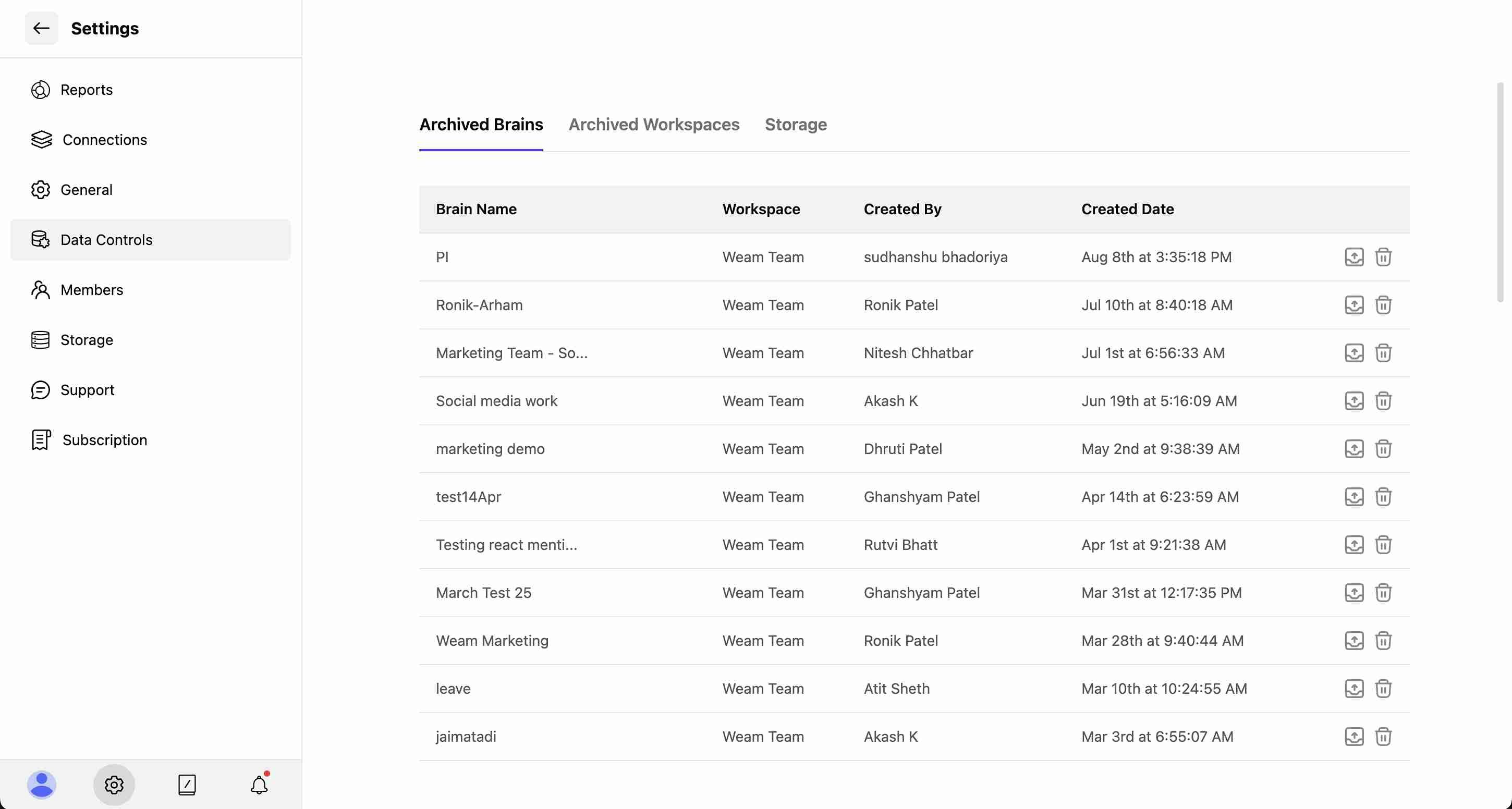
The Archived Brains section displays a table with the following information:
* **Brain Name**: Original name of the archived Brain
* **Workspace**: Which workspace the Brain belonged to (e.g., "Weam Team")
* **Created By**: User who originally created the Brain
* **Created Date**: When the Brain was first established
### Managing Archived Brains
### Viewing Archived Brains
The Archived Brains section displays a table with the following information:
* **Brain Name**: Original name of the archived Brain
* **Workspace**: Which workspace the Brain belonged to (e.g., "Weam Team")
* **Created By**: User who originally created the Brain
* **Created Date**: When the Brain was first established
### Managing Archived Brains
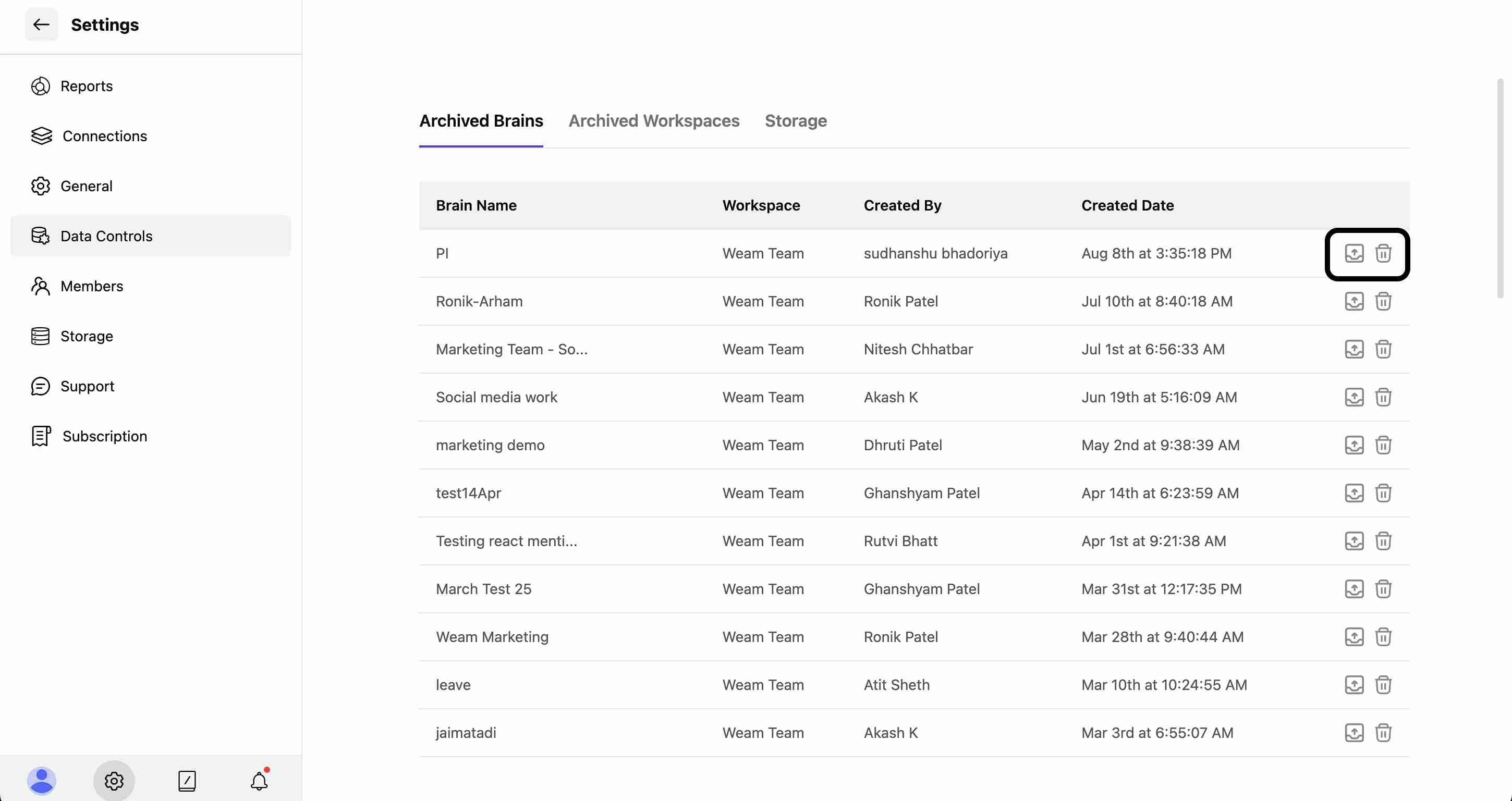 For each archived Brain, you have two action options:
#### Restore Brain
* Click the restore icon to bring the Brain back to active status
* The Brain will be restored to its original workspace
* All content, agents, and prompts will be recovered
#### Delete Brain
* Click the delete icon to permanently remove the archived Brain
* **Warning**: This action is irreversible and will free up storage space
* All associated content will be permanently lost
## Archived Workspaces
For each archived Brain, you have two action options:
#### Restore Brain
* Click the restore icon to bring the Brain back to active status
* The Brain will be restored to its original workspace
* All content, agents, and prompts will be recovered
#### Delete Brain
* Click the delete icon to permanently remove the archived Brain
* **Warning**: This action is irreversible and will free up storage space
* All associated content will be permanently lost
## Archived Workspaces
 ### Viewing Archived Workspaces
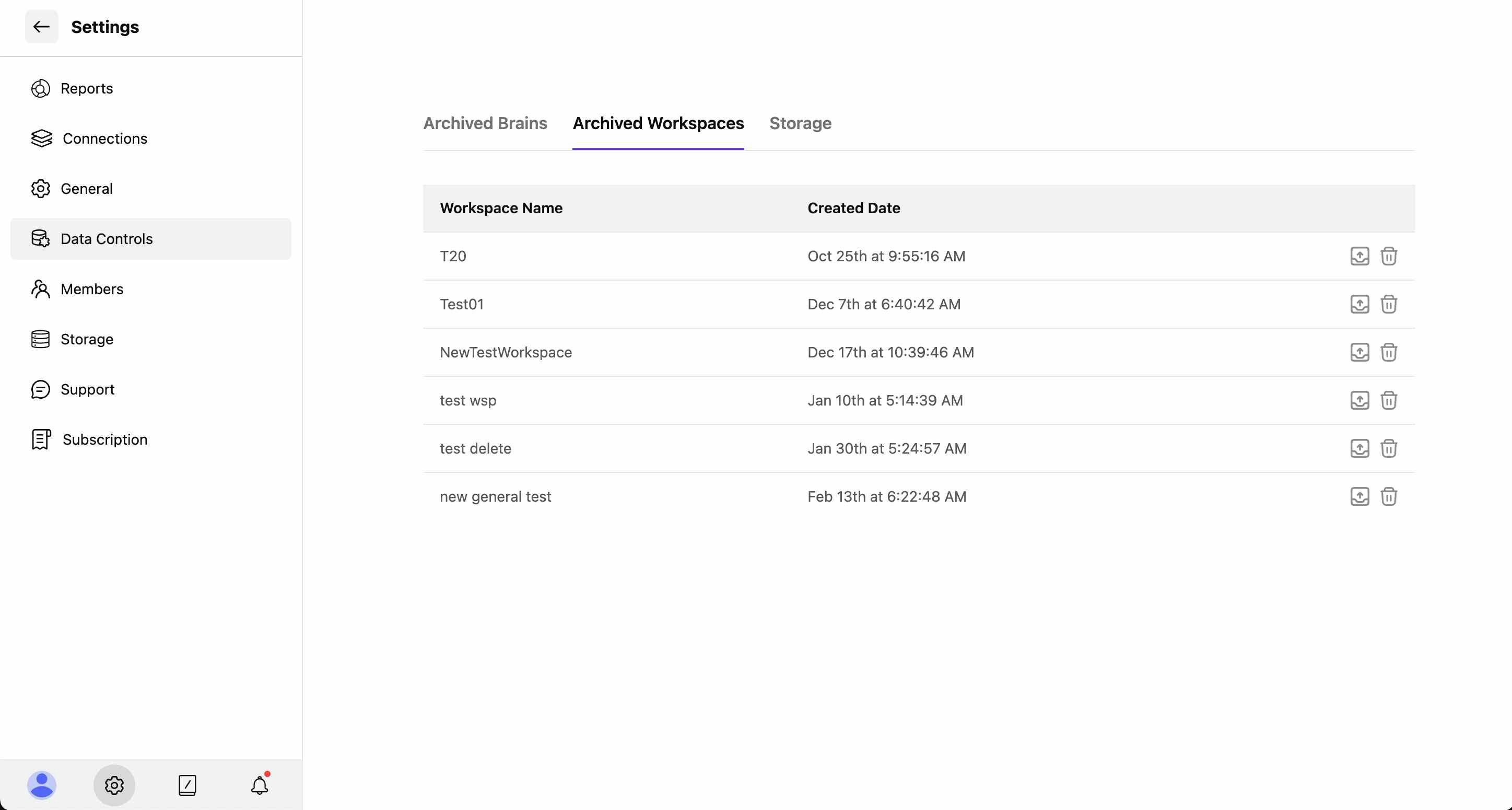
The Archived Workspaces section shows:
* **Workspace Name**: Original workspace identifier
* **Created Date**: When the workspace was initially created
### Managing Archived Workspaces
### Viewing Archived Workspaces
The Archived Workspaces section shows:
* **Workspace Name**: Original workspace identifier
* **Created Date**: When the workspace was initially created
### Managing Archived Workspaces
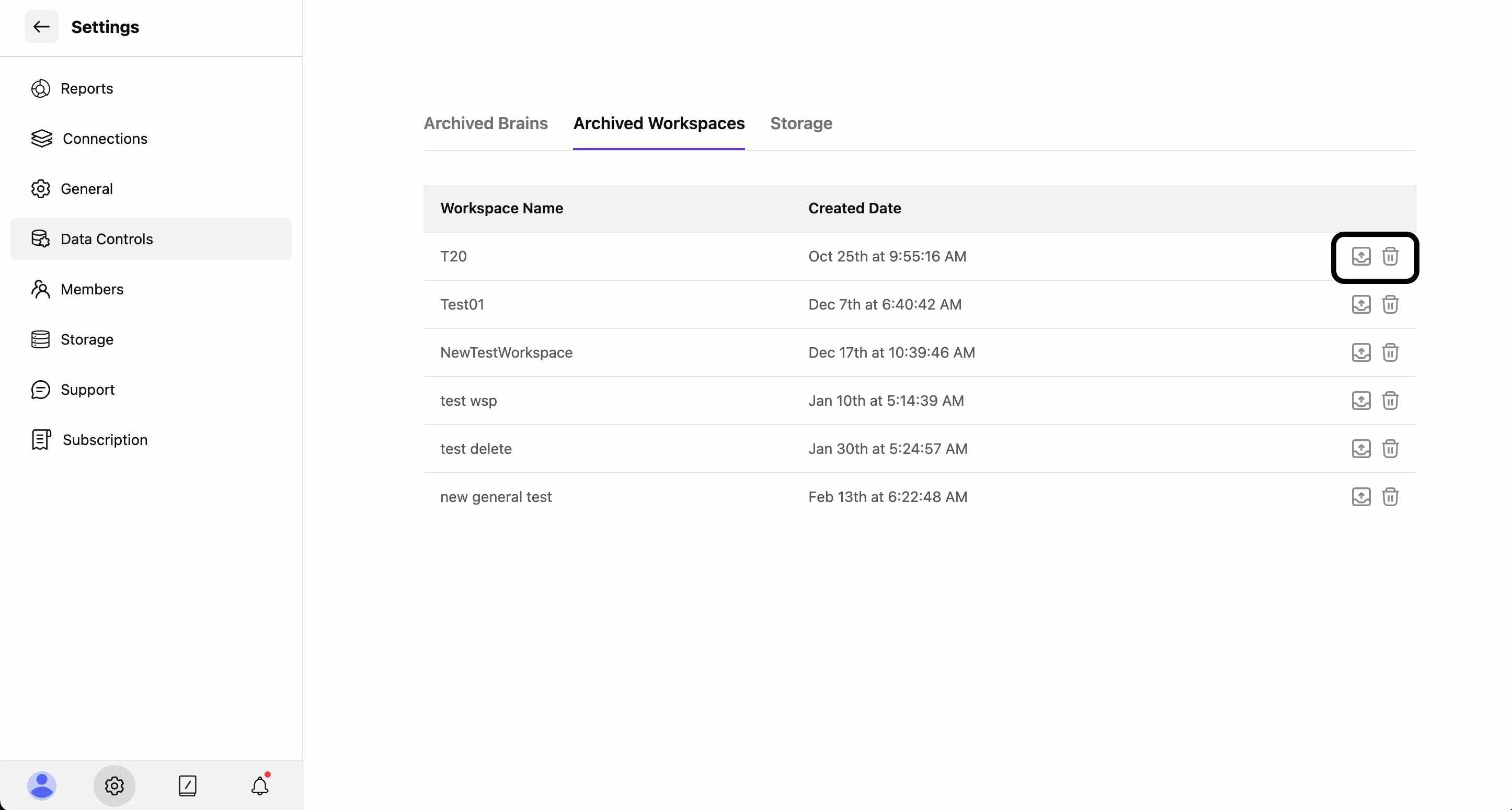 Similar to Brains, archived workspaces have two management options:
#### Restore Workspace
* Restore the entire workspace back to active status
* All associated Brains and content within the workspace will be recovered
* Original user permissions and access rights will be reinstated
#### Delete Workspace
* Permanently delete the archived workspace
* **Caution**: This removes all Brains and content within that workspace permanently
* Action cannot be undone once confirmed
## Storage Management
Similar to Brains, archived workspaces have two management options:
#### Restore Workspace
* Restore the entire workspace back to active status
* All associated Brains and content within the workspace will be recovered
* Original user permissions and access rights will be reinstated
#### Delete Workspace
* Permanently delete the archived workspace
* **Caution**: This removes all Brains and content within that workspace permanently
* Action cannot be undone once confirmed
## Storage Management
 ### Storage Overview
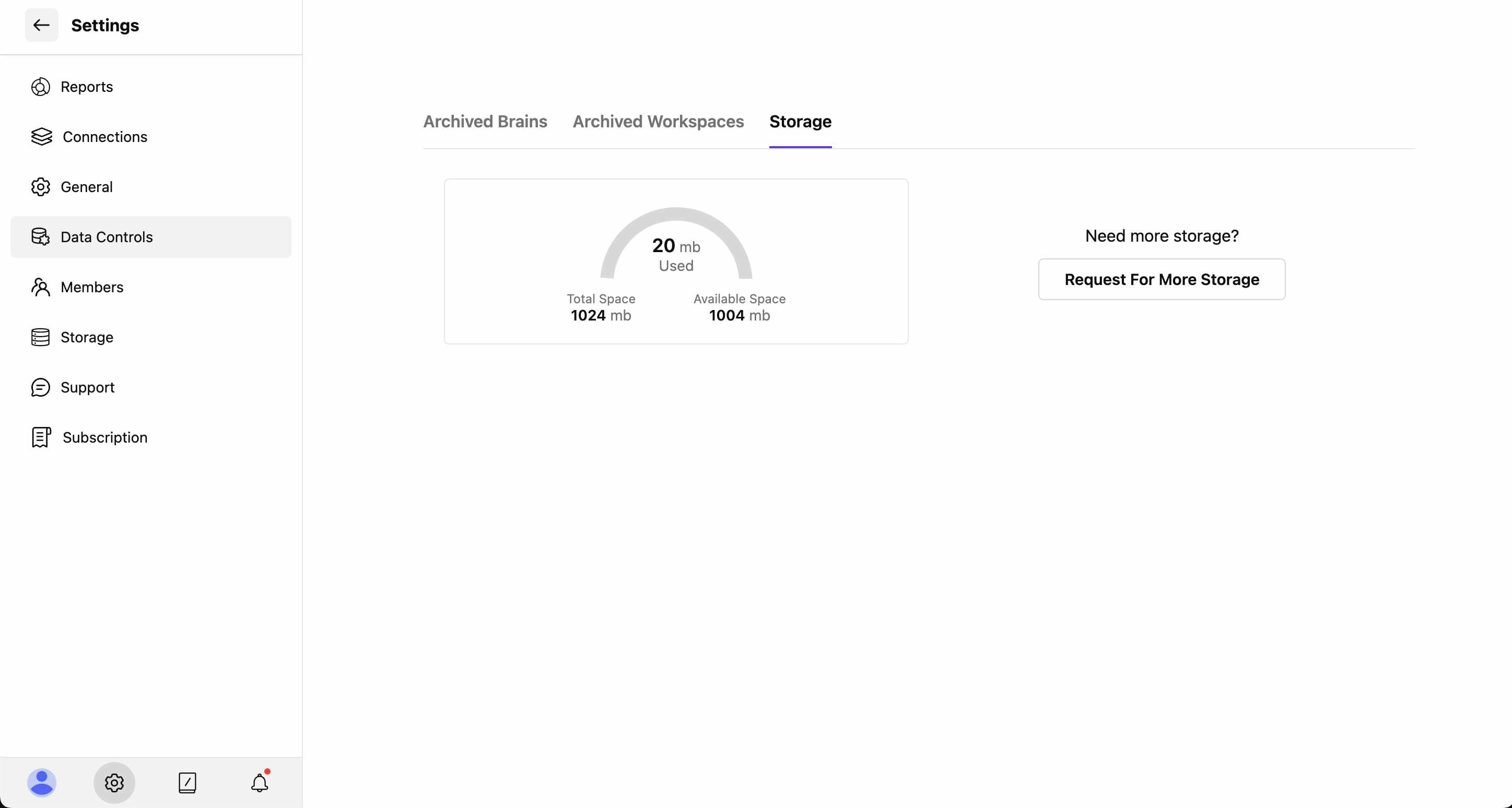
The Storage section provides a visual breakdown of your workspace storage:
#### Storage Metrics
* **Total Space**: Your allocated storage limit (e.g., 1024 mb)
* **Used Space**: Current storage consumption (e.g., 20 mb)
* **Available Space**: Remaining storage capacity (e.g., 1004 mb)
* **Visual Indicator**: Circular progress chart showing usage percentage
### Storage Actions
* **Request For More Storage**: Button to request additional storage allocation when needed
* **Usage Monitoring**: Track how storage is being utilized across your workspace
### Storage Overview
The Storage section provides a visual breakdown of your workspace storage:
#### Storage Metrics
* **Total Space**: Your allocated storage limit (e.g., 1024 mb)
* **Used Space**: Current storage consumption (e.g., 20 mb)
* **Available Space**: Remaining storage capacity (e.g., 1004 mb)
* **Visual Indicator**: Circular progress chart showing usage percentage
### Storage Actions
* **Request For More Storage**: Button to request additional storage allocation when needed
* **Usage Monitoring**: Track how storage is being utilized across your workspace