> ## Documentation Index
> Fetch the complete documentation index at: https://opensource.weam.ai/docs/llms.txt
> Use this file to discover all available pages before exploring further.
# Prompts
The Prompts Library provides pre-built conversation starters and templates to help you maintain consistency and save time across your team.
## Step-by-Step Guide to Using Prompts
### Step 1: Access the Prompts Library
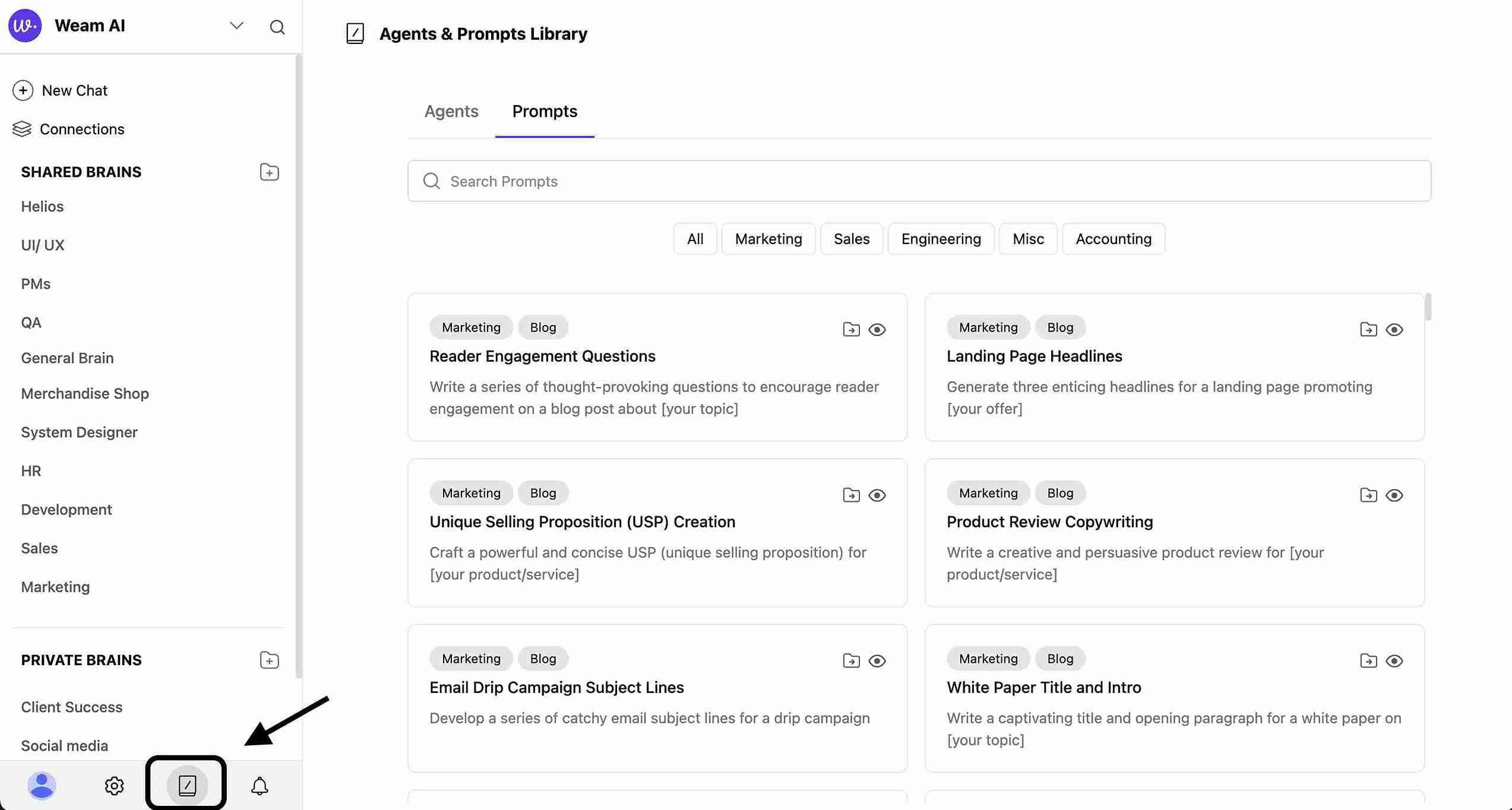
1. Navigate to "Agents & Prompts Library" from the main interface
2. Click on the "Prompts" tab to view all available prompts
3. Browse the collection of pre-built agents and prompts
 ### Step 2: Choose Your Action
For each prompt, you have 2 main options:
### Step 2: Choose Your Action
For each prompt, you have 2 main options:
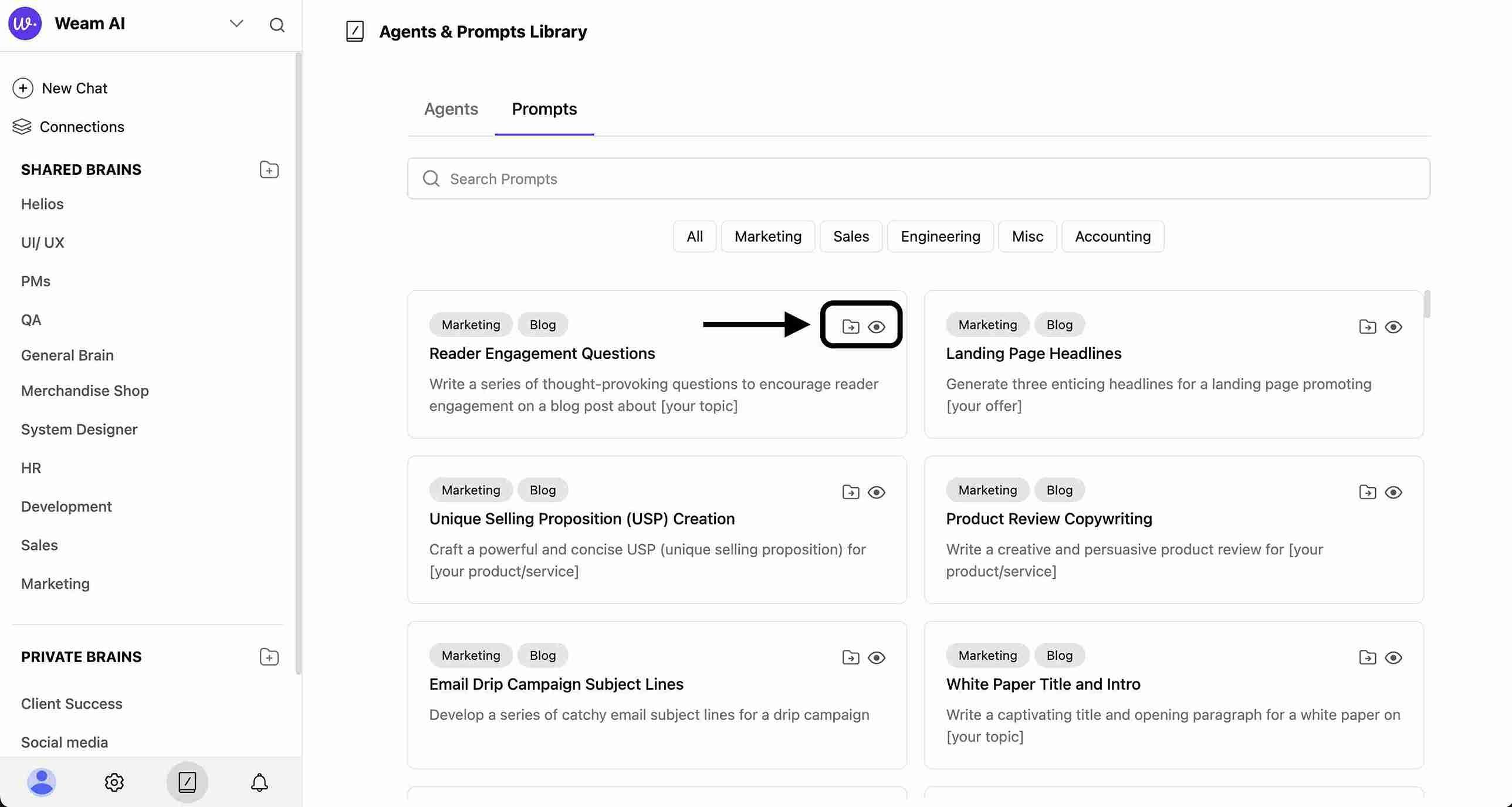 #### Option A: Quick Look (View Prompt Details)
1. Click on the prompt to see a preview
2. Review the prompt content and description
3. See template variables like `[your topic]` or `[your offer]`
4. Check the category tags (e.g., "Marketing, Blog")
#### Option A: Quick Look (View Prompt Details)
1. Click on the prompt to see a preview
2. Review the prompt content and description
3. See template variables like `[your topic]` or `[your offer]`
4. Check the category tags (e.g., "Marketing, Blog")
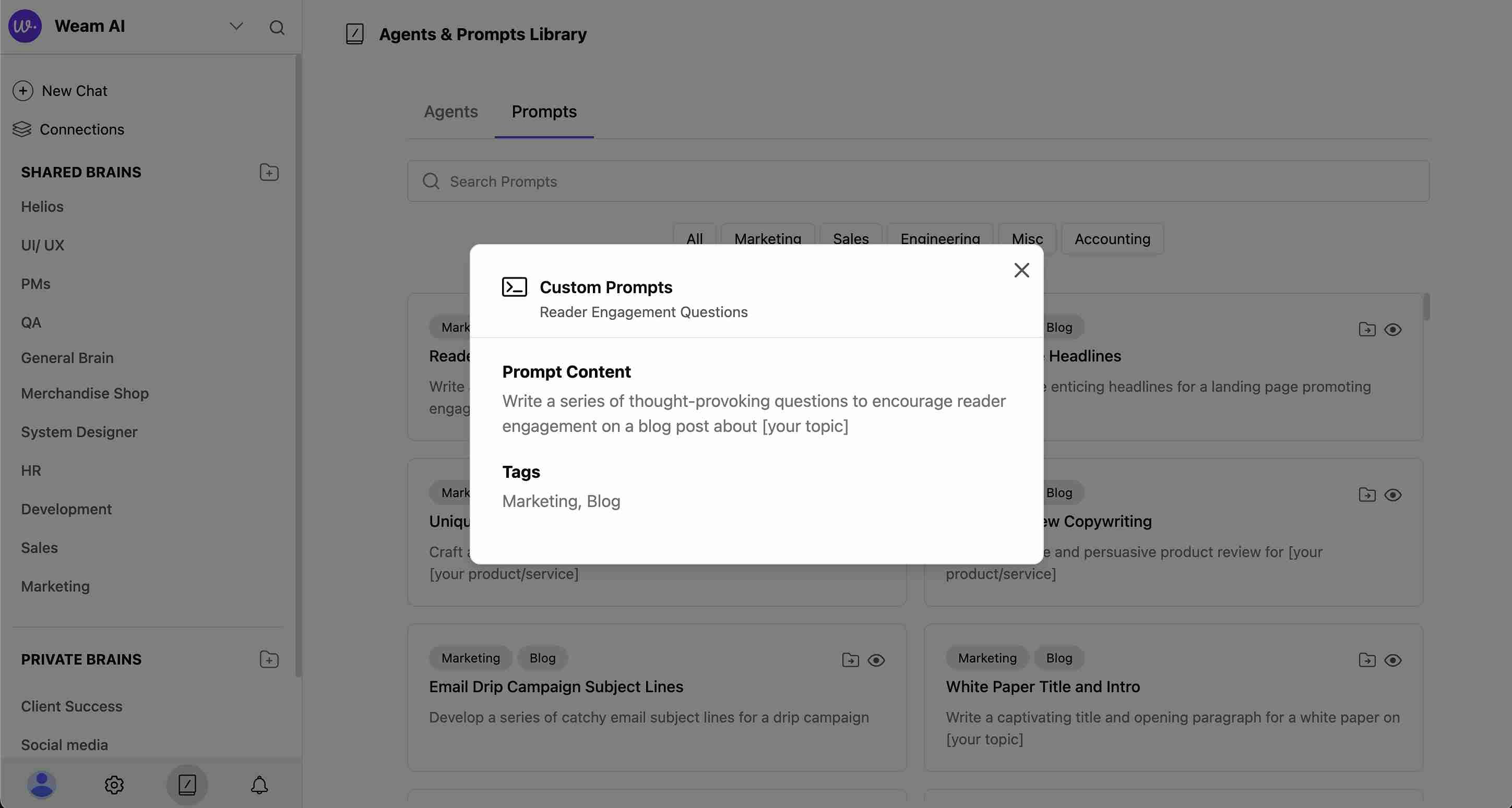 #### Option B: Move to Brain (Recommended for Regular Use)
1. Select the prompt you want to use regularly
2. Click "Move to Brain"
3. Choose which Brain to add the prompt to from the list:
#### Option B: Move to Brain (Recommended for Regular Use)
1. Select the prompt you want to use regularly
2. Click "Move to Brain"
3. Choose which Brain to add the prompt to from the list:
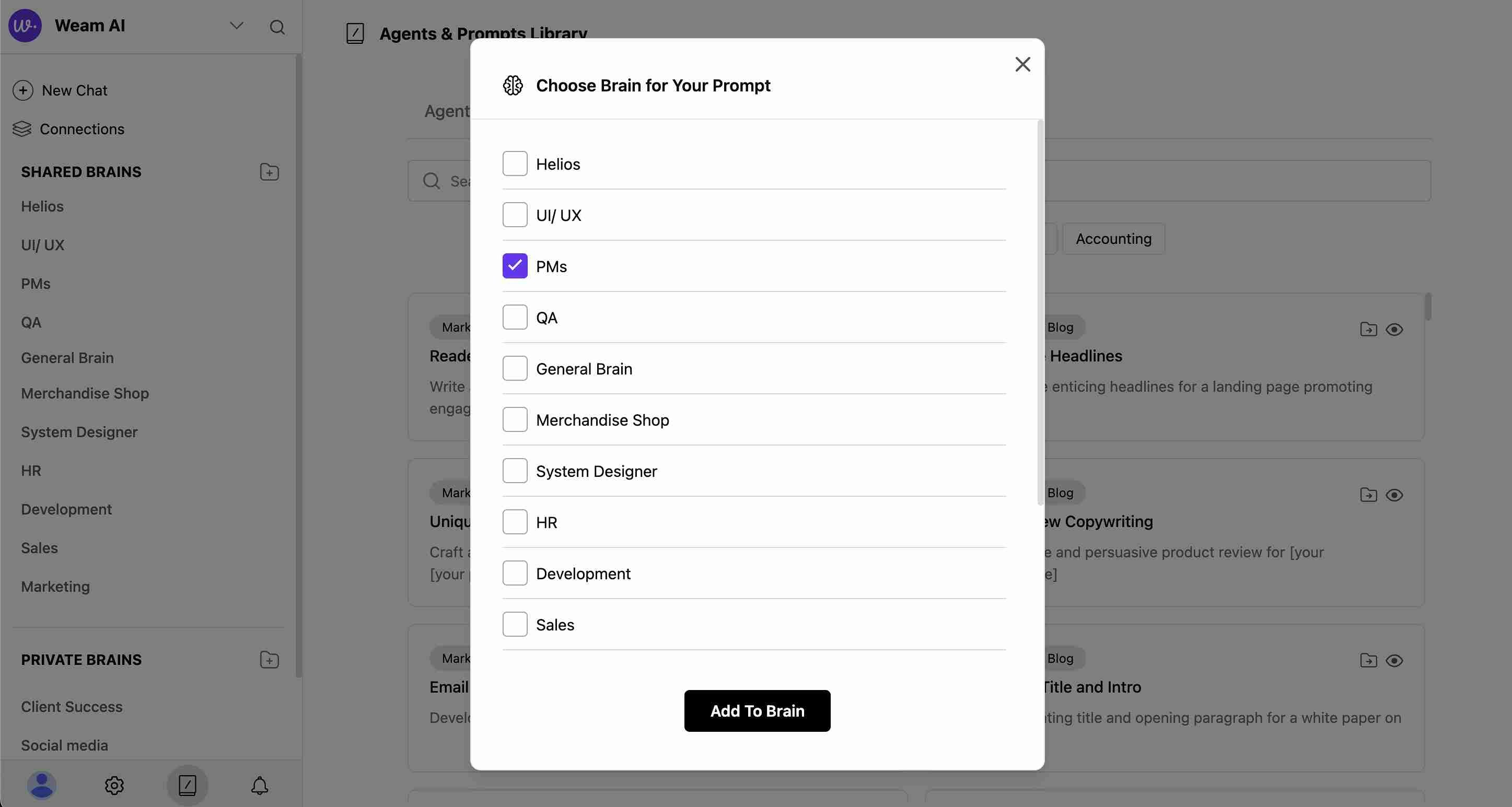 4. Click "Add to Brain" to confirm
### Step 3: Use Prompts in Chat
Once you've added prompts to a Brain:
1. **Go to Chat Interface**: Navigate to any chat or start a new conversation
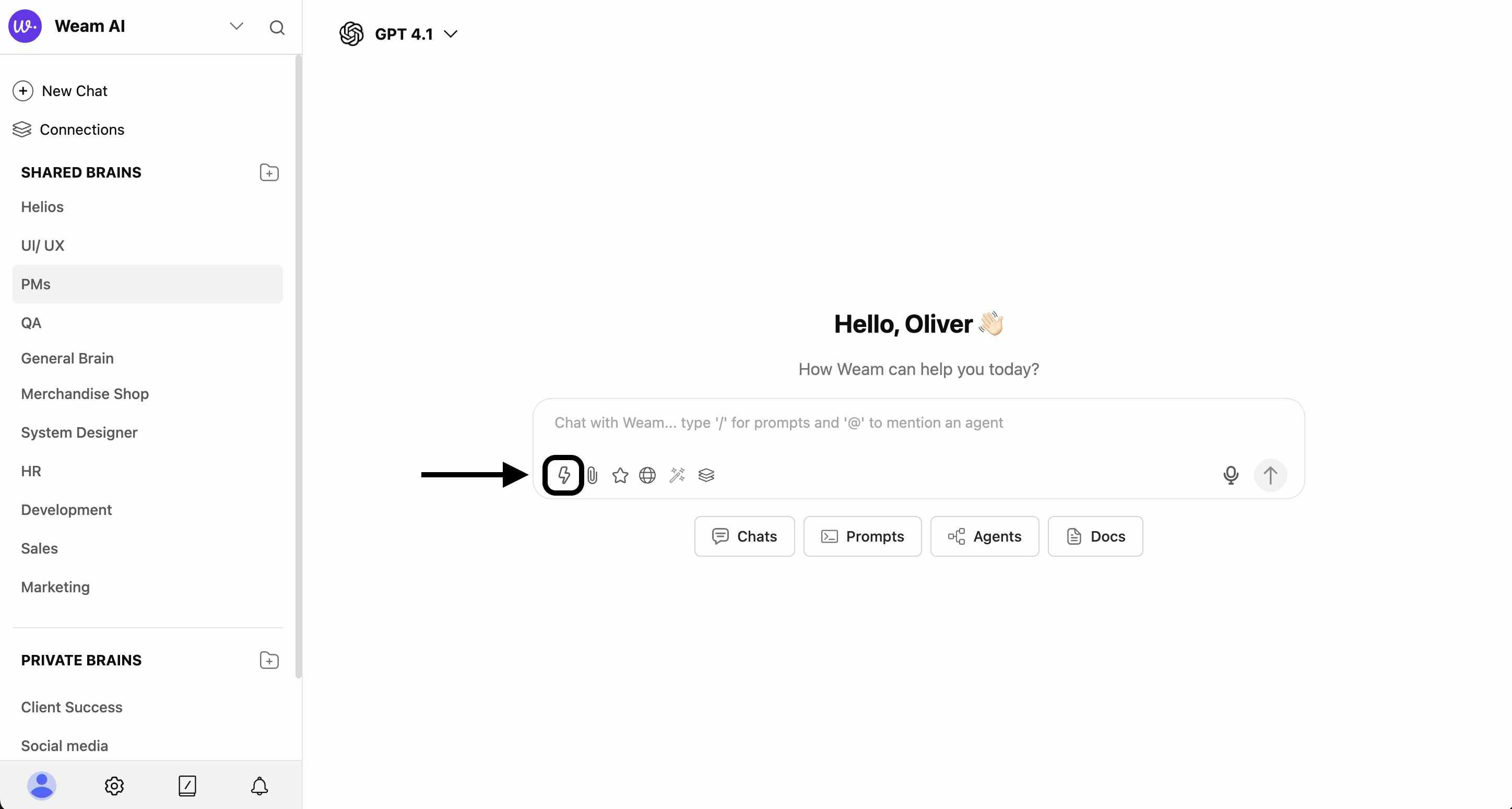
2. **Access Prompts**: Click the lightning bolt (⚡) icon in the chat input area
4. Click "Add to Brain" to confirm
### Step 3: Use Prompts in Chat
Once you've added prompts to a Brain:
1. **Go to Chat Interface**: Navigate to any chat or start a new conversation
2. **Access Prompts**: Click the lightning bolt (⚡) icon in the chat input area
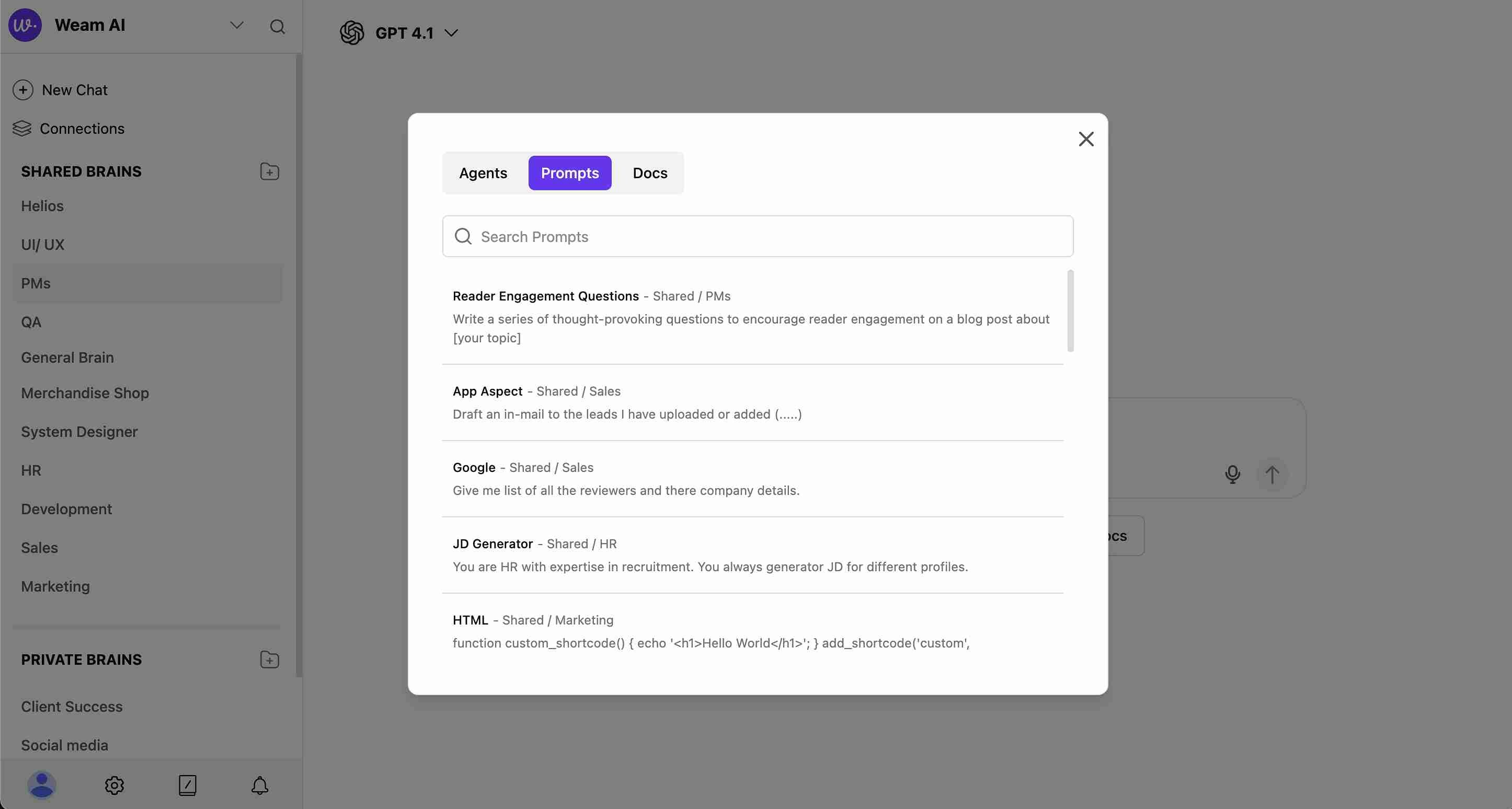
 3. **Select from Modal**: A modal will appear showing your available prompts
4. **Choose Your Prompt**: Click on the prompt you want to use
3. **Select from Modal**: A modal will appear showing your available prompts
4. **Choose Your Prompt**: Click on the prompt you want to use
 5. **Customize**: The prompt will populate in your chat input with placeholder variables
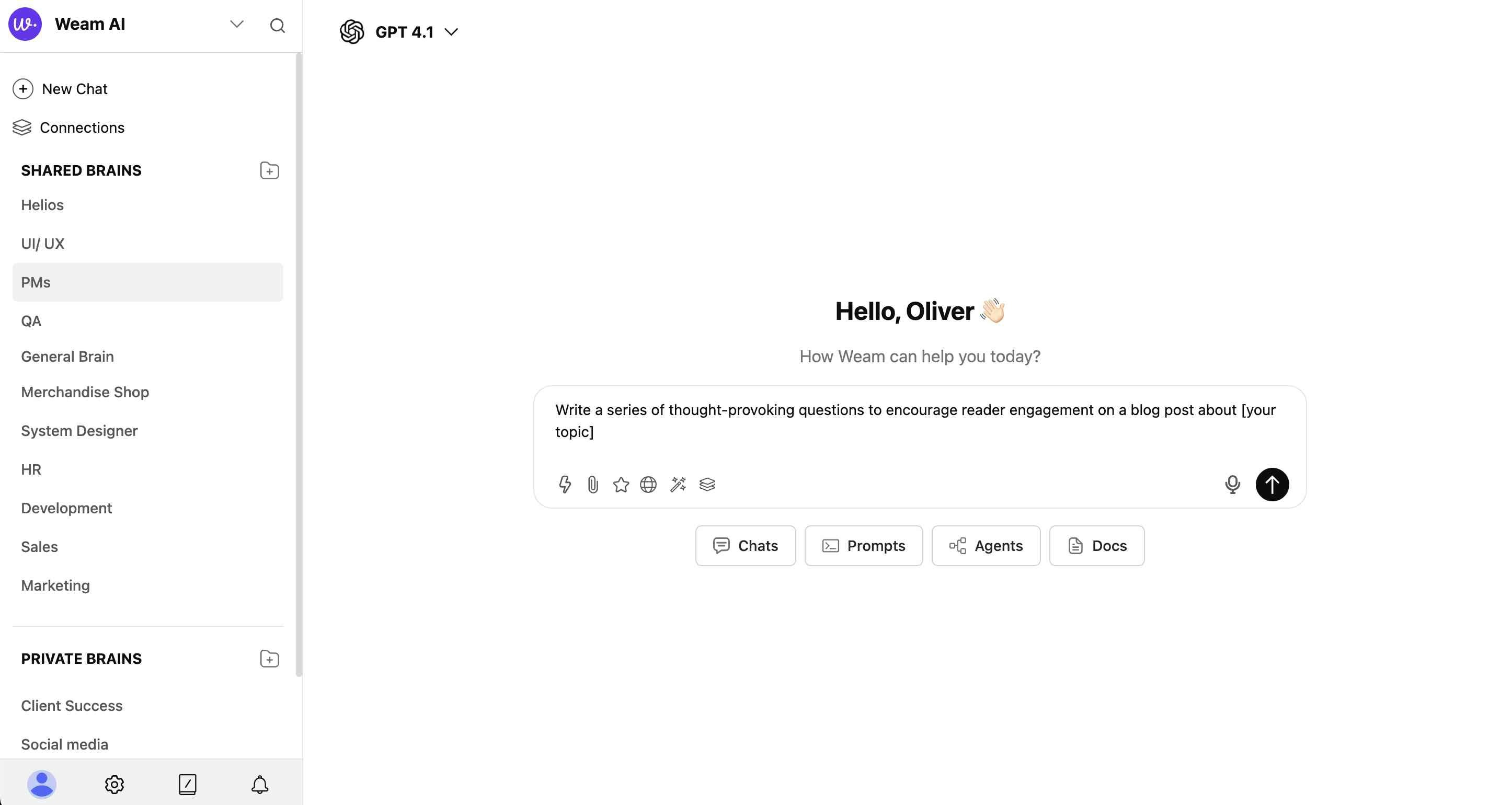 6. **Edit Variables**: Replace placeholders like `[your topic]` with your specific content
7. **Send**: Submit your customized prompt to start the AI conversation
## Understanding Prompt Structure
### Template Variables
Prompts include customizable placeholders:
* `[your topic]` - Replace with your specific subject
* `[your offer]` - Add your product or service details
* `[your product/service]` - Insert relevant business information
### Categories Available
* **Marketing**: Content creation, campaigns, social media
* **Sales**: Lead generation, proposals, customer engagement
* **Engineering**: Technical documentation, code templates
* **Accounting**: Financial processes, reporting
* **Misc**: General business functions
## Tips for Best Results
### Organization
* Add frequently used prompts to your most-accessed Brains
* Use Shared Brains for prompts your whole team should access
* Keep personal variations in Private Brains
### Customization
* Always replace placeholder variables with specific information
* Modify prompt language to match your brand voice
* Combine multiple prompts for complex tasks
### Team Collaboration
* Share effective prompts by adding them to Shared Brains
* Create consistent messaging across your organization
* Build a library of proven templates for common tasks
6. **Edit Variables**: Replace placeholders like `[your topic]` with your specific content
7. **Send**: Submit your customized prompt to start the AI conversation
## Understanding Prompt Structure
### Template Variables
Prompts include customizable placeholders:
* `[your topic]` - Replace with your specific subject
* `[your offer]` - Add your product or service details
* `[your product/service]` - Insert relevant business information
### Categories Available
* **Marketing**: Content creation, campaigns, social media
* **Sales**: Lead generation, proposals, customer engagement
* **Engineering**: Technical documentation, code templates
* **Accounting**: Financial processes, reporting
* **Misc**: General business functions
## Tips for Best Results
### Organization
* Add frequently used prompts to your most-accessed Brains
* Use Shared Brains for prompts your whole team should access
* Keep personal variations in Private Brains
### Customization
* Always replace placeholder variables with specific information
* Modify prompt language to match your brand voice
* Combine multiple prompts for complex tasks
### Team Collaboration
* Share effective prompts by adding them to Shared Brains
* Create consistent messaging across your organization
* Build a library of proven templates for common tasks