> ## Documentation Index
> Fetch the complete documentation index at: https://opensource.weam.ai/docs/llms.txt
> Use this file to discover all available pages before exploring further.
# Profile Settings
Manage your personal account information, profile picture, and basic account details through the Profile Settings section.
## Accessing Profile Settings
1. Click the profile icon in the bottom-left corner of the interface
2. Select "Profile Settings" from the dropdown menu
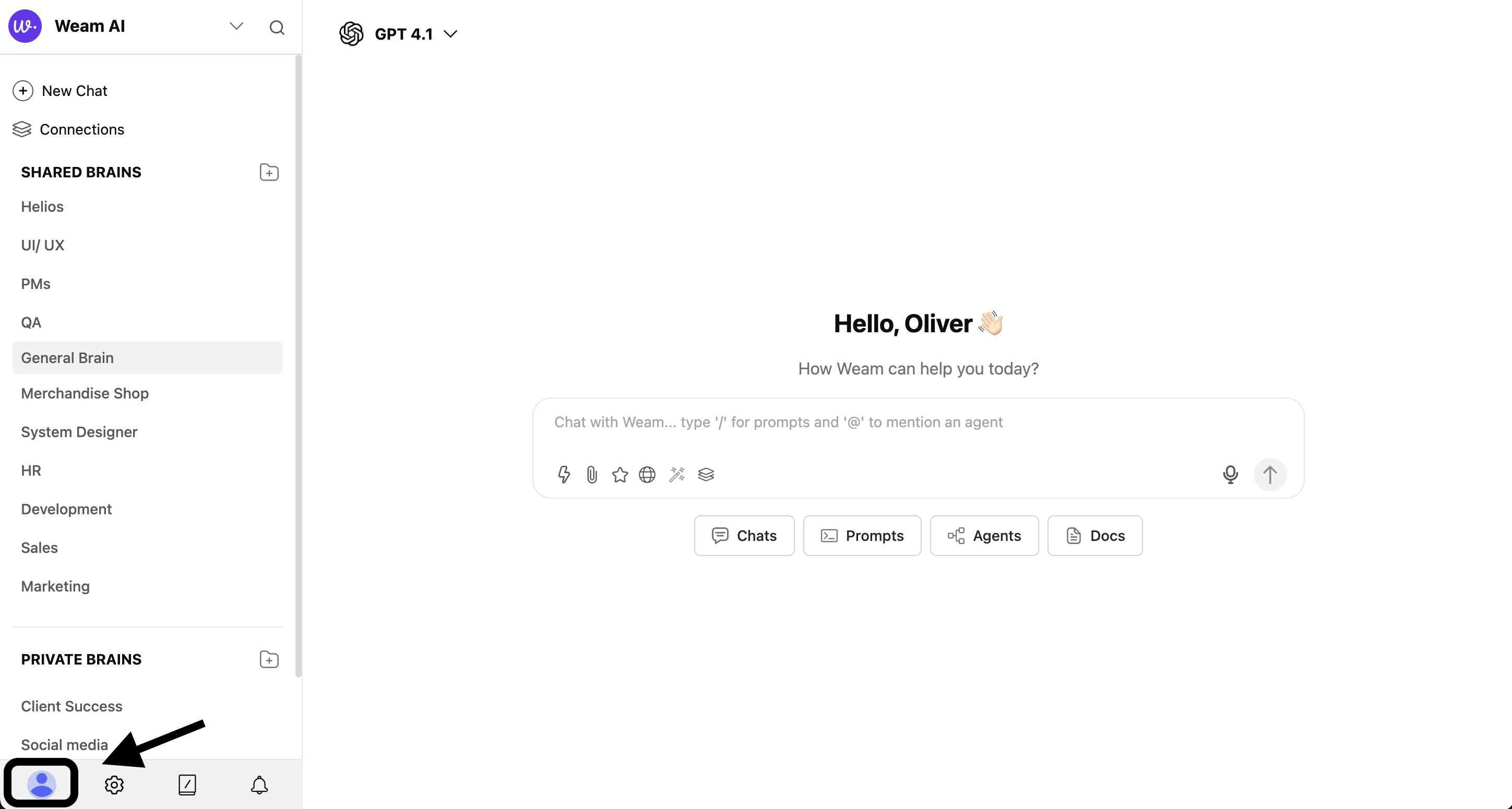 3. Navigate through the three main sections: General, Password, and Two-Factor Authentication
## General Settings
3. Navigate through the three main sections: General, Password, and Two-Factor Authentication
## General Settings
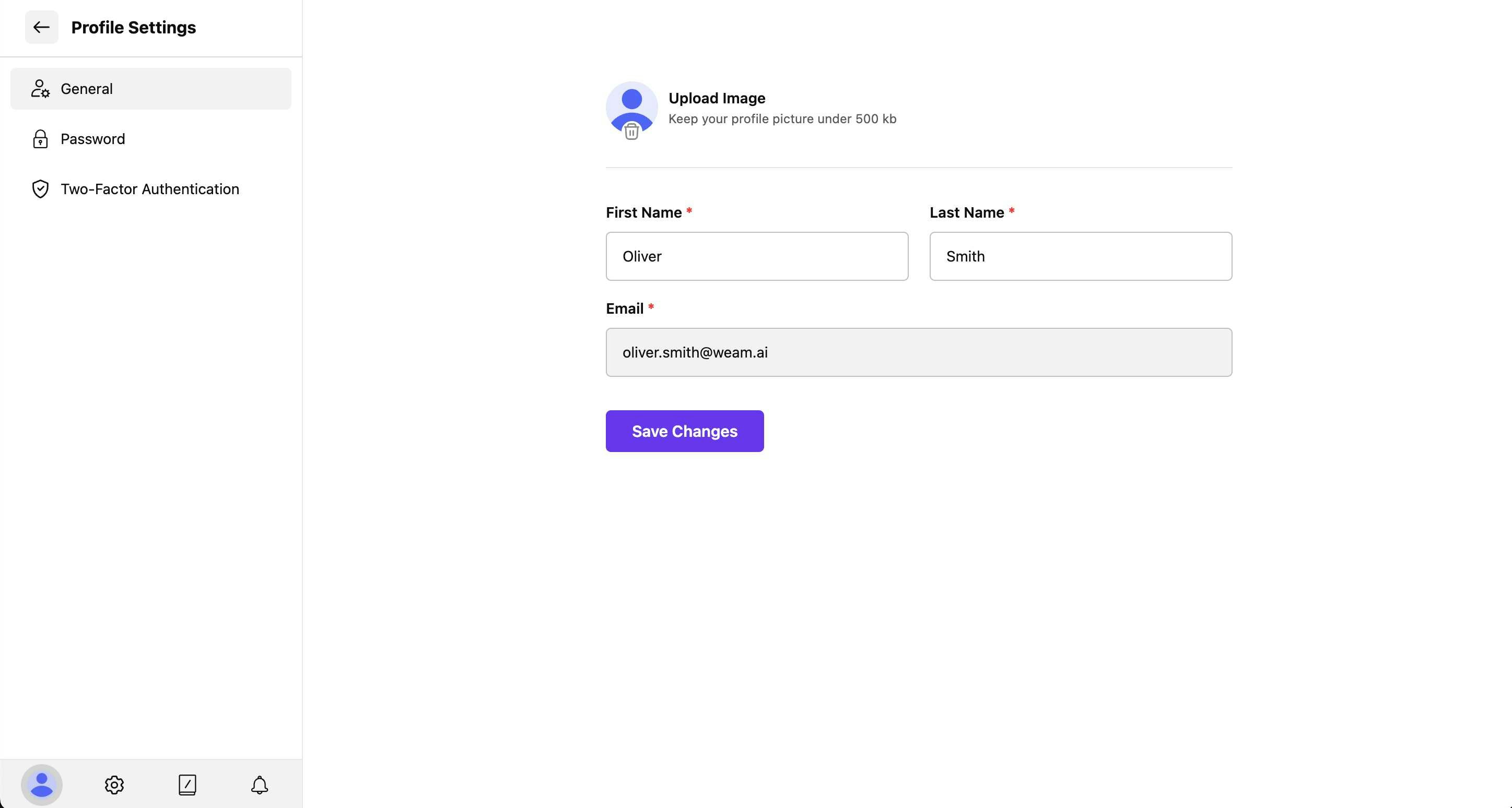 ### Profile Picture
* **Upload Image**: Click "Upload Image" to add or change your profile picture
* **File Requirements**: Keep your profile picture under 500kb for optimal performance
* **Supported Formats**: JPG, PNG, and other standard image formats
### Personal Information
* **First Name**: Enter your first name for team identification
* **Last Name**: Add your last name for complete profile information
* **Email**: Your email address (used for login and notifications)
### Saving Changes
Click "Save Changes" after updating any profile information to apply your modifications.
## Password Management
### Profile Picture
* **Upload Image**: Click "Upload Image" to add or change your profile picture
* **File Requirements**: Keep your profile picture under 500kb for optimal performance
* **Supported Formats**: JPG, PNG, and other standard image formats
### Personal Information
* **First Name**: Enter your first name for team identification
* **Last Name**: Add your last name for complete profile information
* **Email**: Your email address (used for login and notifications)
### Saving Changes
Click "Save Changes" after updating any profile information to apply your modifications.
## Password Management
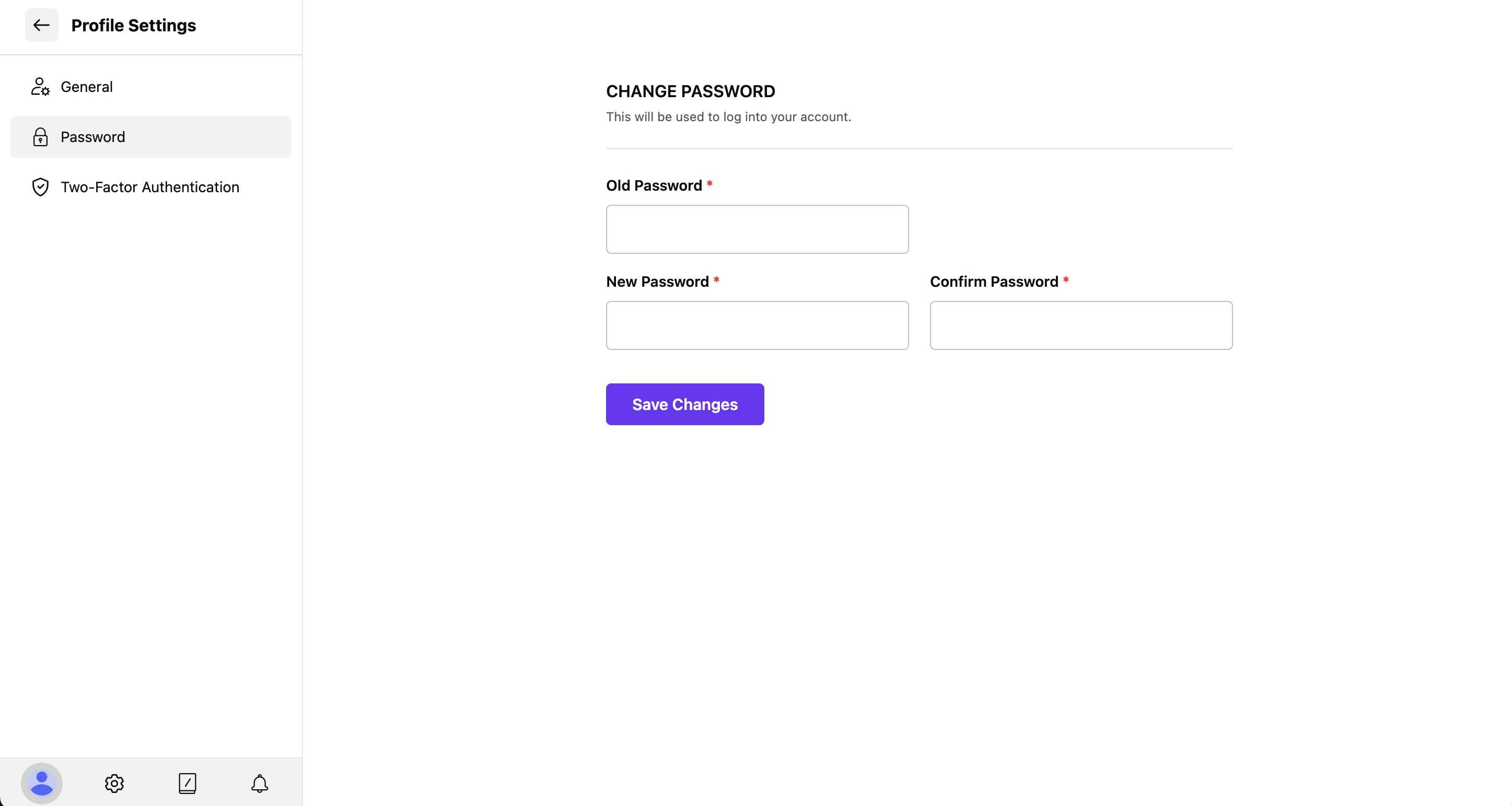 ### Changing Your Password
1. Navigate to the "Password" tab in Profile Settings
2. Enter your current password in the "Old Password" field
3. Create a new password in the "New Password" field
4. Confirm your new password in the "Confirm Password" field
5. Click "Save Changes" to update your password
## Two-Factor Authentication (2FA)
### Changing Your Password
1. Navigate to the "Password" tab in Profile Settings
2. Enter your current password in the "Old Password" field
3. Create a new password in the "New Password" field
4. Confirm your new password in the "Confirm Password" field
5. Click "Save Changes" to update your password
## Two-Factor Authentication (2FA)
 ### Why Enable 2FA
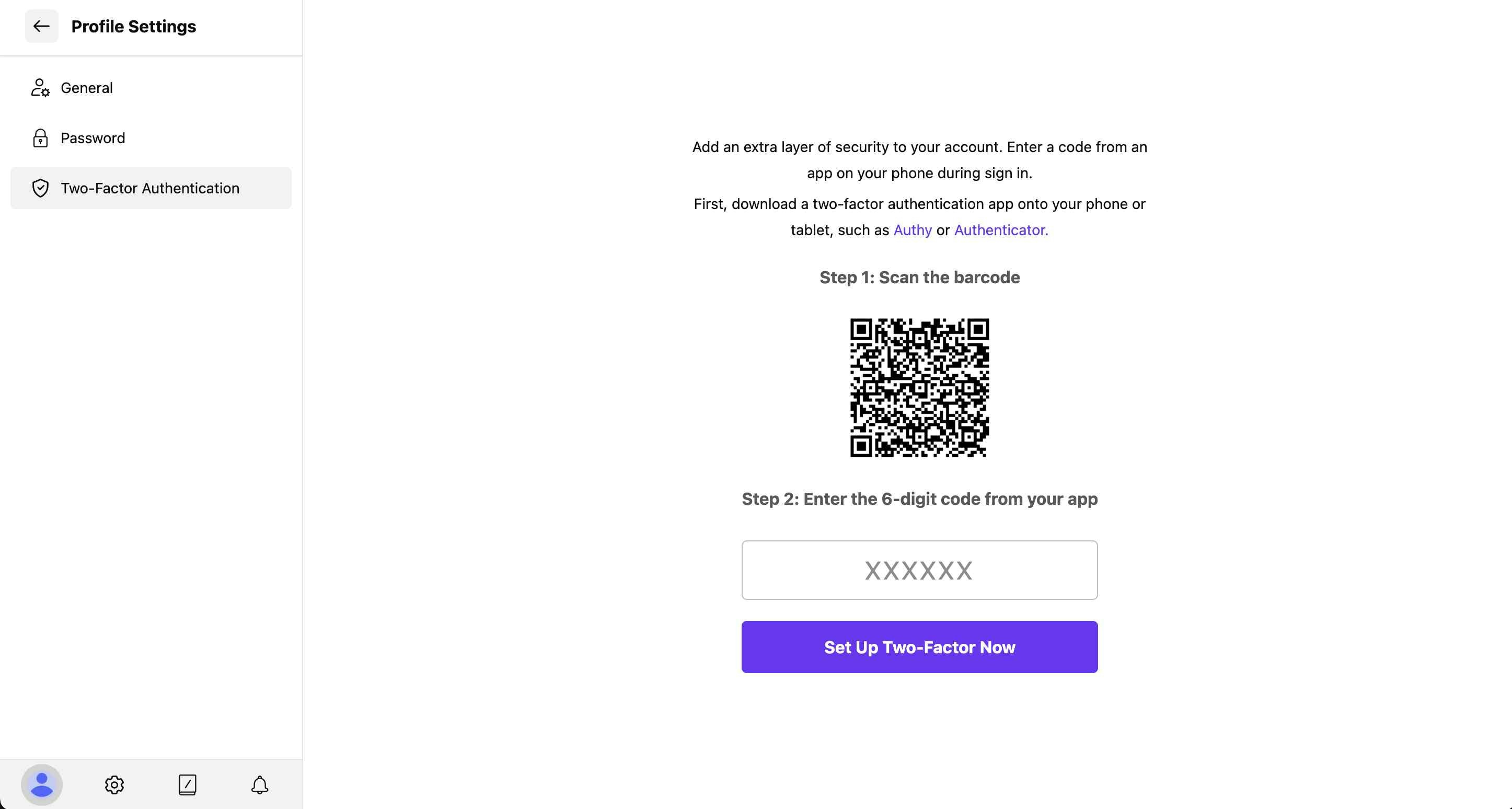
Two-factor authentication adds an extra layer of security to your account by requiring a code from an app on your phone during sign-in, in addition to your password.
### Setting Up 2FA
#### Step 1: Download an Authentication App
First, download a two-factor authentication app on your phone or tablet, such as:
* **Authy** (recommended)
* **Authenticator** (Microsoft, Google, etc.)
* Any TOTP-compatible authentication app
#### Step 2: Scan the QR Code
1. Open your authentication app
2. Scan the QR code displayed in the Weam interface
3. The app will generate a unique account entry for Weam
#### Step 3: Enter Verification Code
1. Enter the 6-digit code from your authentication app
2. Click "Set Up Two-Factor Now" to complete the setup
### Why Enable 2FA
Two-factor authentication adds an extra layer of security to your account by requiring a code from an app on your phone during sign-in, in addition to your password.
### Setting Up 2FA
#### Step 1: Download an Authentication App
First, download a two-factor authentication app on your phone or tablet, such as:
* **Authy** (recommended)
* **Authenticator** (Microsoft, Google, etc.)
* Any TOTP-compatible authentication app
#### Step 2: Scan the QR Code
1. Open your authentication app
2. Scan the QR code displayed in the Weam interface
3. The app will generate a unique account entry for Weam
#### Step 3: Enter Verification Code
1. Enter the 6-digit code from your authentication app
2. Click "Set Up Two-Factor Now" to complete the setup