> ## Documentation Index
> Fetch the complete documentation index at: https://opensource.weam.ai/docs/llms.txt
> Use this file to discover all available pages before exploring further.
# Multi LLM
Switch between different AI models directly in your chat interface without needing separate platforms or subscriptions. Use one model for technical documentation, another for creative writing, and a different one for data analysis - all within the same workspace.
## Available AI Models
| Provider | Models |
| ----------------- | ------------------------------------------------------------- |
| **OpenAI** | GPT-5, GPT-5 Chat, GPT 4.1, GPT 4o Latest, o3, GPT 4.1 Search |
| **Google Gemini** | 2.5 Pro Preview, 2.0 Flash, 2.5 Flash Preview |
| **Anthropic** | Claude 3.5 Haiku Latest, Sonnet 4, Opus 4 |
| **Perplexity** | Sonar, Sonar Reasoning Pro |
| **DeepSeek** | R1 |
| **Llama4** | Maverik, Scout |
| **Grok** | 3 Mini Beta |
| **Qwen** | 3 |
## Credit System
### Credit Usage Overview
* **Current Usage**: Monitor your credit consumption (e.g., 260.00 / 2000 credits)
* **Per-Message Costs**: Different models require different credit amounts
* **Usage Tracking**: Visual progress bar shows remaining credits
* **Budget Management**: Plan model usage based on available credits
## How to Switch Models
### Model Selection Process
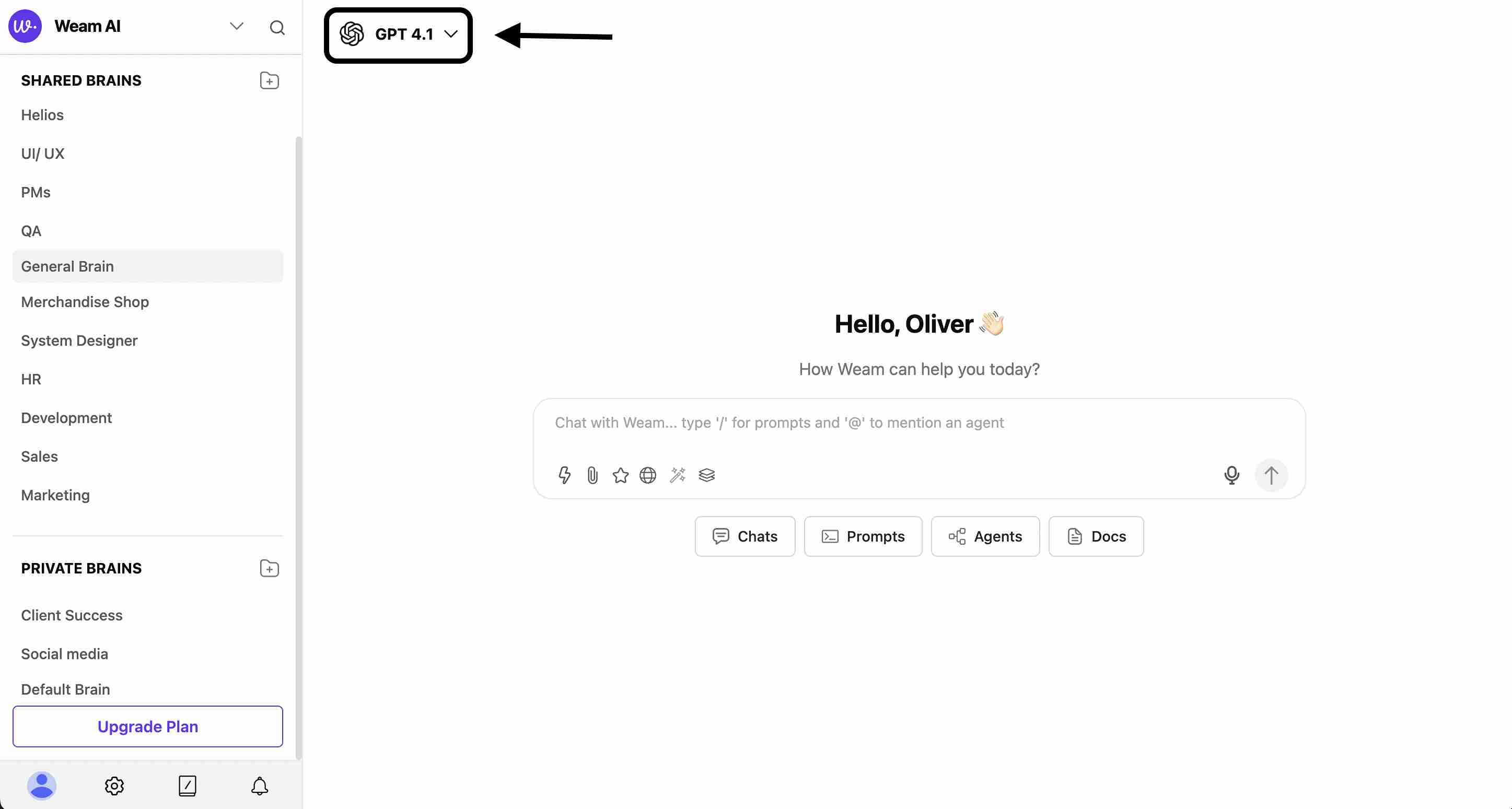
1. **Locate Model Selector**: Click the model dropdown (e.g., "GPT 4.1") in the top interface
 2. **View Available Options**: Browse all accessible models with their capabilities
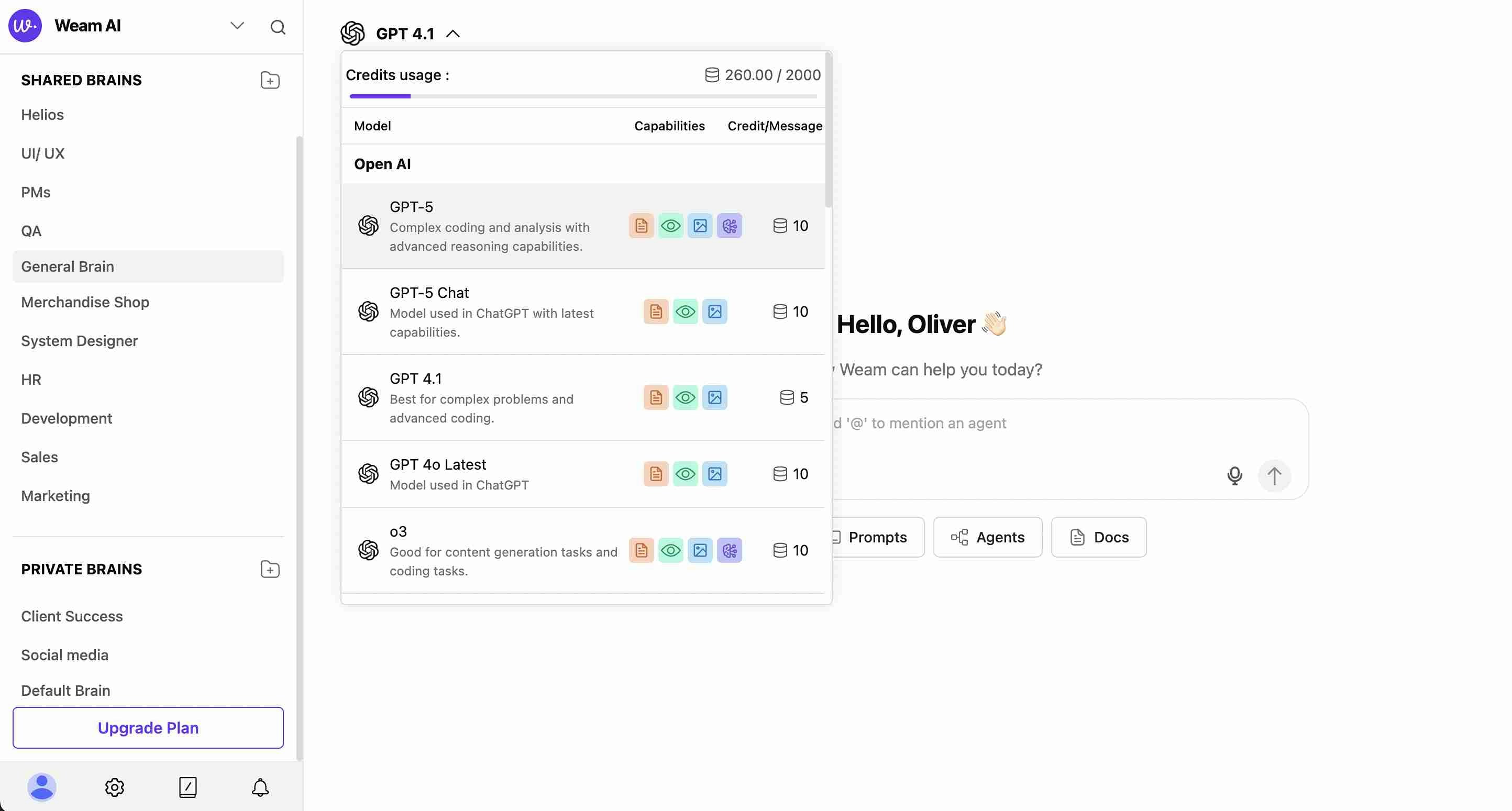 3. **Check Credit Costs**: Review credit requirements for each model
4. **Select Model**: Click on your preferred model for the current task
5. **Continue Chatting**: Start or continue conversations with the new model
### Model Capabilities Comparison
Each model displays:
* **Model Name**: Clear identification of the AI model
* **Description**: Brief explanation of model strengths and use cases
* **Credit Cost**: Exact credit requirement per message
* **Capability Icons**: Visual indicators for supported features (document analysis, vision, code generation, etc.)
## Best Practices
### Credit Management
* **Monitor Usage**: Keep track of remaining credits in the progress bar
* **Plan Ahead**: Consider credit costs when selecting models for long conversations
* **Optimize Spending**: Use appropriate model complexity for each task
* **Budget Allocation**: Distribute credits across different model types based on needs
### Workflow Integration
* **Context Continuity**: Switch models mid-conversation while maintaining context
* **Capability Matching**: Use different models for different parts of complex projects
* **Quality Comparison**: Test multiple models on similar tasks to find preferences
* **Team Coordination**: Establish model selection guidelines for consistent team usage
Remember that model availability and credit costs may vary based on your subscription plan and current platform offerings.
3. **Check Credit Costs**: Review credit requirements for each model
4. **Select Model**: Click on your preferred model for the current task
5. **Continue Chatting**: Start or continue conversations with the new model
### Model Capabilities Comparison
Each model displays:
* **Model Name**: Clear identification of the AI model
* **Description**: Brief explanation of model strengths and use cases
* **Credit Cost**: Exact credit requirement per message
* **Capability Icons**: Visual indicators for supported features (document analysis, vision, code generation, etc.)
## Best Practices
### Credit Management
* **Monitor Usage**: Keep track of remaining credits in the progress bar
* **Plan Ahead**: Consider credit costs when selecting models for long conversations
* **Optimize Spending**: Use appropriate model complexity for each task
* **Budget Allocation**: Distribute credits across different model types based on needs
### Workflow Integration
* **Context Continuity**: Switch models mid-conversation while maintaining context
* **Capability Matching**: Use different models for different parts of complex projects
* **Quality Comparison**: Test multiple models on similar tasks to find preferences
* **Team Coordination**: Establish model selection guidelines for consistent team usage
Remember that model availability and credit costs may vary based on your subscription plan and current platform offerings.