> ## Documentation Index
> Fetch the complete documentation index at: https://opensource.weam.ai/docs/llms.txt
> Use this file to discover all available pages before exploring further.
# Workspaces
Workspaces are collaborative environments that help teams organize their work effectively.
They provide dedicated areas where different teams, departments, or projects can operate with their own Brains, members, and resources while maintaining organizational connectivity.
## Understanding Workspaces
### What are Workspaces?
Workspaces serve as distinct collaboration spaces that allow:
* **Team Organization**: Separate environments for different teams or projects
* **Resource Management**: Dedicated Brains, agents, and prompts for each workspace
* **Access Control**: Controlled membership and permissions
* **Focused Collaboration**: Team-specific discussions and workflows
### Default Workspace
Your company workspace is automatically created upon first login, typically named after your organization (e.g., "Weam AI").
## Accessing and Switching Workspaces
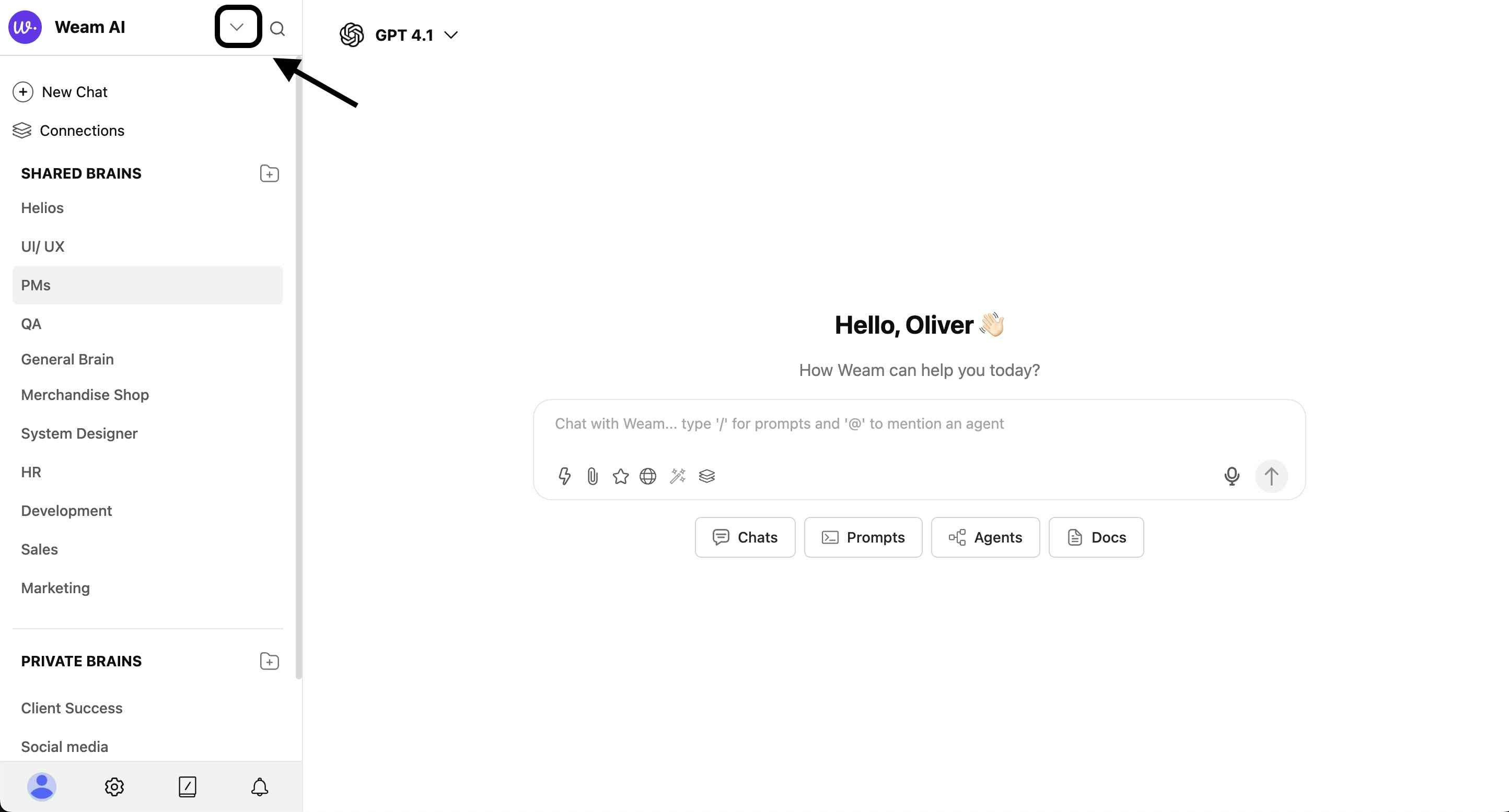
### Workspace Selector
1. **Location**: Top-left corner of the interface, next to the company name
2. **Access**: Click the dropdown arrow next to the workspace name
3. **View Options**: See all available workspaces you have access to
4. **Switch**: Select any workspace to change your current environment
 ### Available Actions
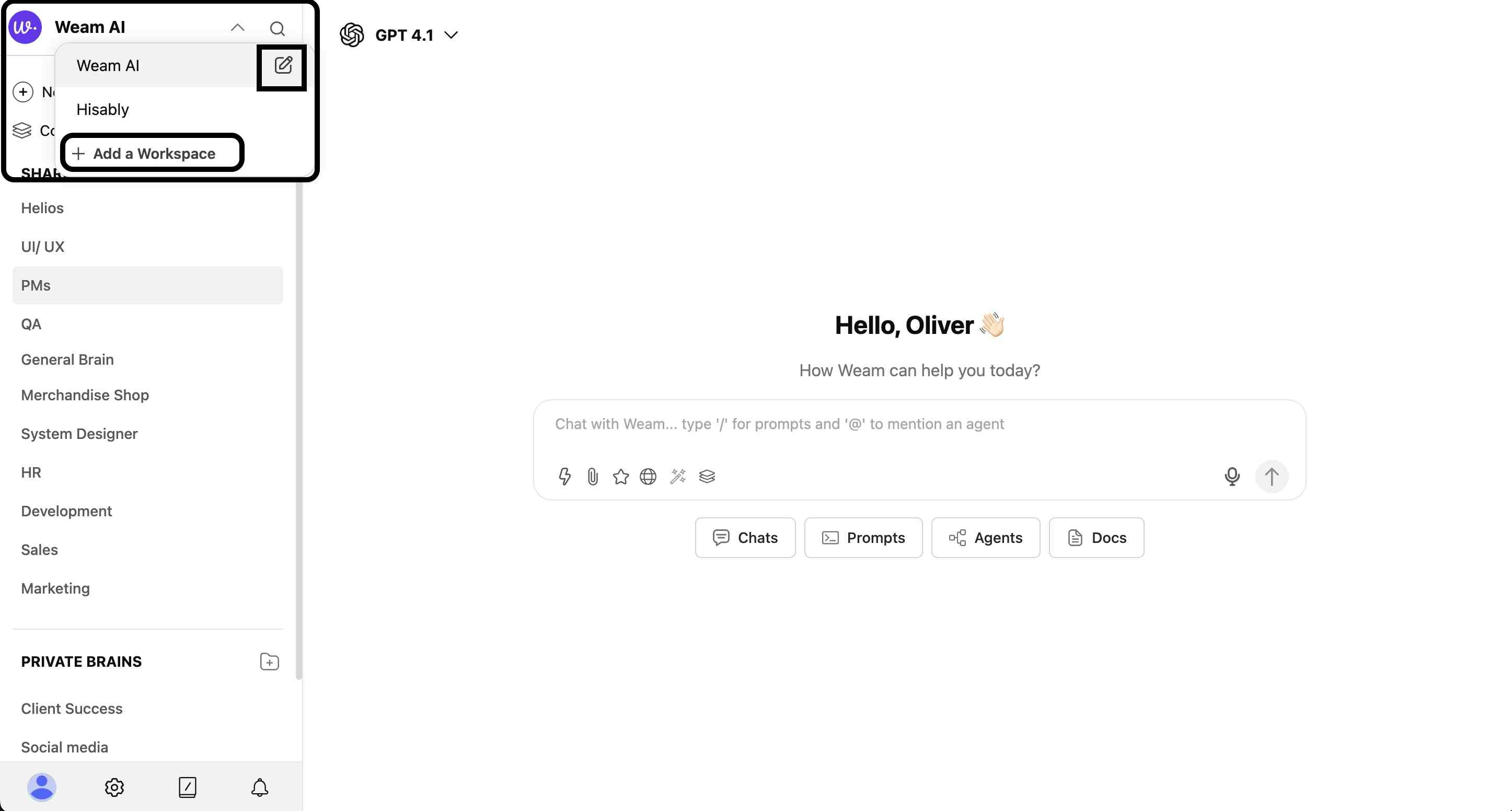
From the workspace dropdown, you can:
* **Switch Workspaces**: Move between different workspace environments
* **Add a Workspace**: Create new workspaces (Admin permission required)
* **View Workspace Details**: Access workspace information and settings
### Available Actions
From the workspace dropdown, you can:
* **Switch Workspaces**: Move between different workspace environments
* **Add a Workspace**: Create new workspaces (Admin permission required)
* **View Workspace Details**: Access workspace information and settings
 ## Workspace Management (Admin Only)
### Creating a New Workspace
#### Step 1: Access Creation Modal
1. Click the dropdown arrow next to the workspace name
2. Select "Add a Workspace"
3. The workspace creation modal will appear
## Workspace Management (Admin Only)
### Creating a New Workspace
#### Step 1: Access Creation Modal
1. Click the dropdown arrow next to the workspace name
2. Select "Add a Workspace"
3. The workspace creation modal will appear
 #### Step 2: Configure Workspace Details
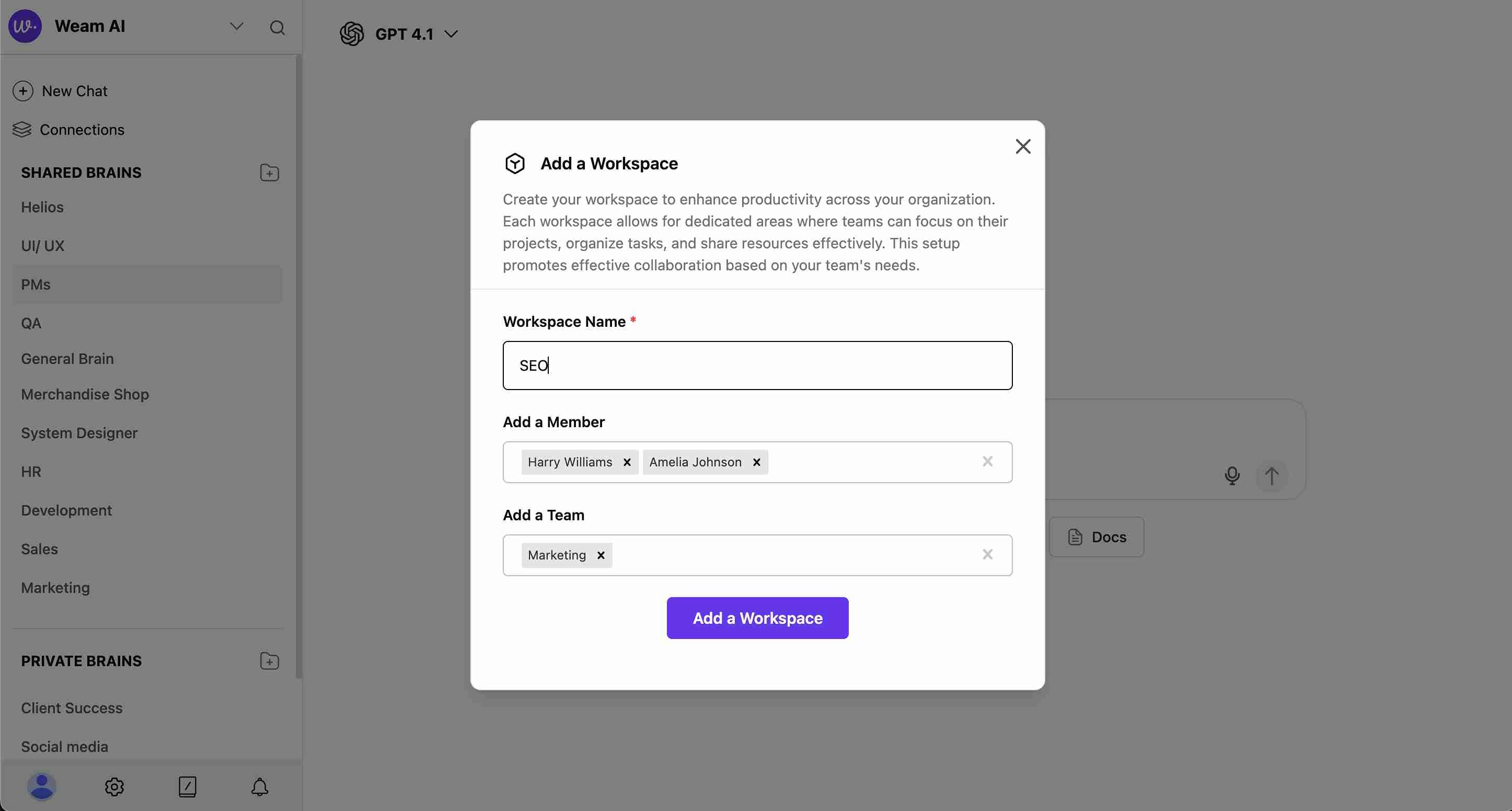
**Workspace Name** (Required)
* Enter a descriptive name for your workspace
* Choose names that clearly identify the team or project purpose
**Add Members**
* Search and select individual users to include
* Add multiple members by selecting them from the dropdown
* Remove members by clicking the "x" next to their names
**Add Teams**
* Include entire teams in the workspace
* Select from existing teams (e.g., "Marketing", "UI/UX", "HR")
* Teams can be removed by clicking the "x" next to the team name
#### Step 3: Finalize Creation
* Review all selected members and teams
* Click "Add a Workspace" to create the workspace
* The new workspace will be available in your workspace selector
### Workspace Information
#### Viewing Workspace Details
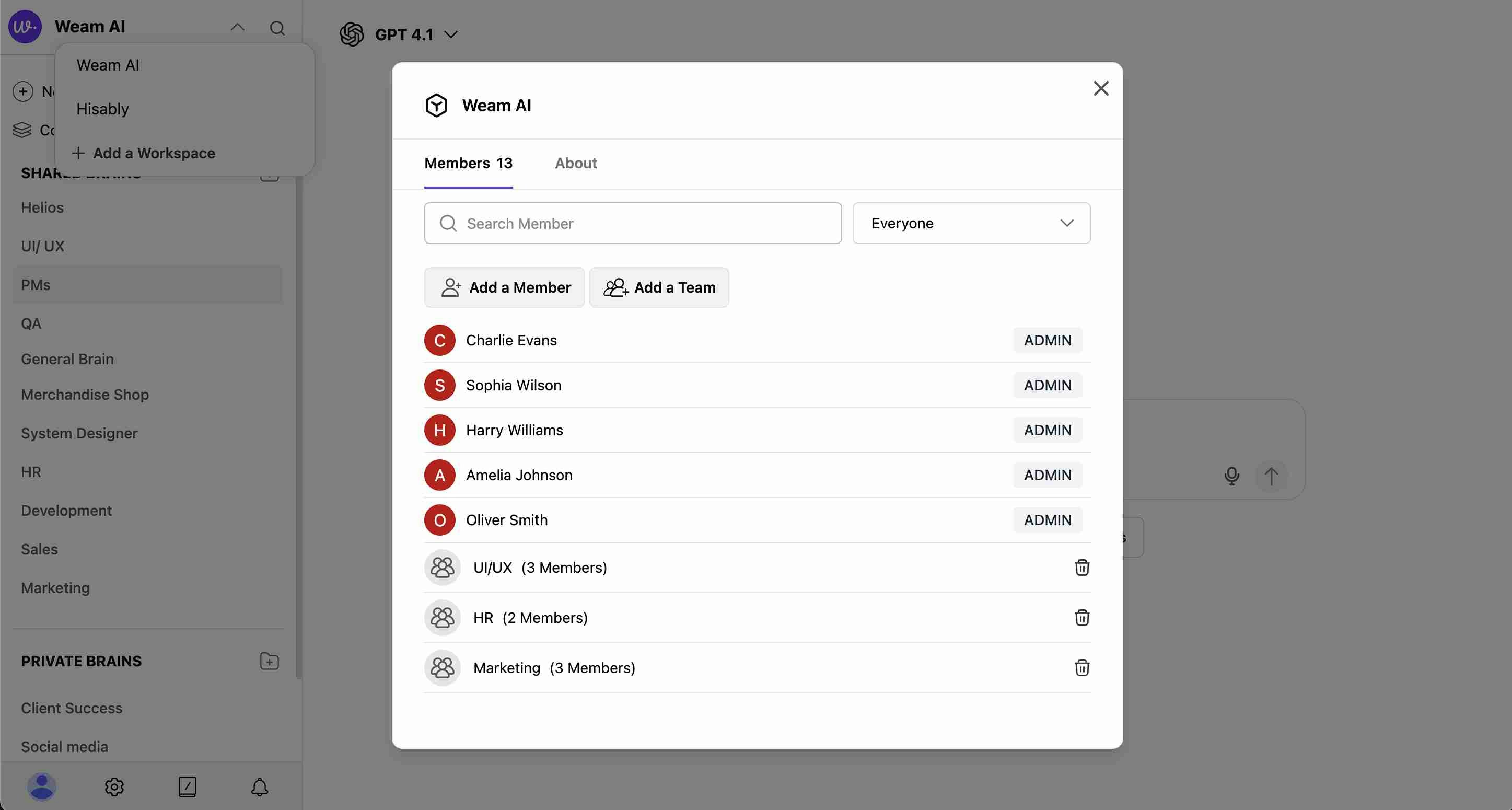
Access workspace information through the workspace modal:
**Members Tab**
* **Total Count**: Shows number of members (e.g., "Members 13")
* **Search Function**: Find specific members
* **Filter Options**: View by role or team (dropdown: "Everyone")
* **Member List**: See all workspace participants with their roles
* **Admin Identification**: Admins are clearly labeled
* **Team Groups**: View organized teams within the workspace
#### Step 2: Configure Workspace Details
**Workspace Name** (Required)
* Enter a descriptive name for your workspace
* Choose names that clearly identify the team or project purpose
**Add Members**
* Search and select individual users to include
* Add multiple members by selecting them from the dropdown
* Remove members by clicking the "x" next to their names
**Add Teams**
* Include entire teams in the workspace
* Select from existing teams (e.g., "Marketing", "UI/UX", "HR")
* Teams can be removed by clicking the "x" next to the team name
#### Step 3: Finalize Creation
* Review all selected members and teams
* Click "Add a Workspace" to create the workspace
* The new workspace will be available in your workspace selector
### Workspace Information
#### Viewing Workspace Details
Access workspace information through the workspace modal:
**Members Tab**
* **Total Count**: Shows number of members (e.g., "Members 13")
* **Search Function**: Find specific members
* **Filter Options**: View by role or team (dropdown: "Everyone")
* **Member List**: See all workspace participants with their roles
* **Admin Identification**: Admins are clearly labeled
* **Team Groups**: View organized teams within the workspace
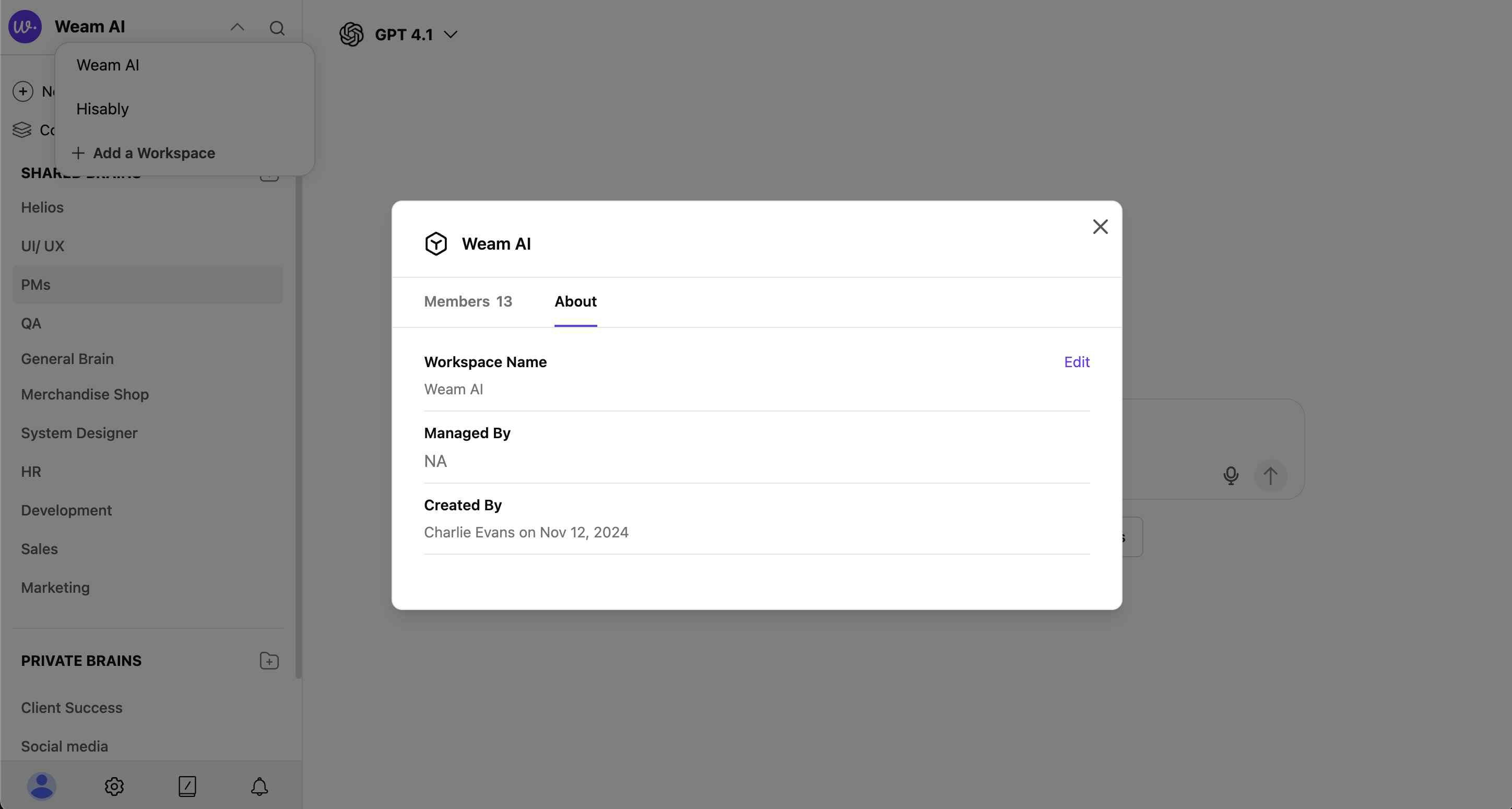
 **About Tab**
* **Workspace Name**: Current name with edit option
* **Managed By**: Workspace administrator information
* **Created By**: Original workspace creator and creation date
* **Management Details**: Administrative oversight information
**About Tab**
* **Workspace Name**: Current name with edit option
* **Managed By**: Workspace administrator information
* **Created By**: Original workspace creator and creation date
* **Management Details**: Administrative oversight information
 ## Workspace Features
### Dedicated Resources
Each workspace maintains its own:
* **Brains**: Knowledge bases specific to the workspace
* **Agents**: AI assistants configured for the workspace
* **Prompts**: Templates and conversation starters
* **Members**: Team members with appropriate access levels
### Collaboration Benefits
* **Focused Environment**: Work within relevant team context
* **Resource Sharing**: Access team-specific knowledge and tools
* **Organized Communication**: Maintain workspace-specific discussions
* **Project Alignment**: Keep team efforts coordinated and productive
### Access Control
* **Permission Management**: Control who can access each workspace
* **Admin Functions**: Workspace creation and management restricted to admins
* **Member Oversight**: Track and manage workspace participation
* **Team Integration**: Seamlessly include entire teams in workspace access
## Workspace Features
### Dedicated Resources
Each workspace maintains its own:
* **Brains**: Knowledge bases specific to the workspace
* **Agents**: AI assistants configured for the workspace
* **Prompts**: Templates and conversation starters
* **Members**: Team members with appropriate access levels
### Collaboration Benefits
* **Focused Environment**: Work within relevant team context
* **Resource Sharing**: Access team-specific knowledge and tools
* **Organized Communication**: Maintain workspace-specific discussions
* **Project Alignment**: Keep team efforts coordinated and productive
### Access Control
* **Permission Management**: Control who can access each workspace
* **Admin Functions**: Workspace creation and management restricted to admins
* **Member Oversight**: Track and manage workspace participation
* **Team Integration**: Seamlessly include entire teams in workspace access