> ## Documentation Index
> Fetch the complete documentation index at: https://opensource.weam.ai/docs/llms.txt
> Use this file to discover all available pages before exploring further.
# Generating an Anthropic API Key
Access Anthropic's powerful Claude AI models for text generation, analysis, and conversation by generating your API key.
## Step-by-Step Guide
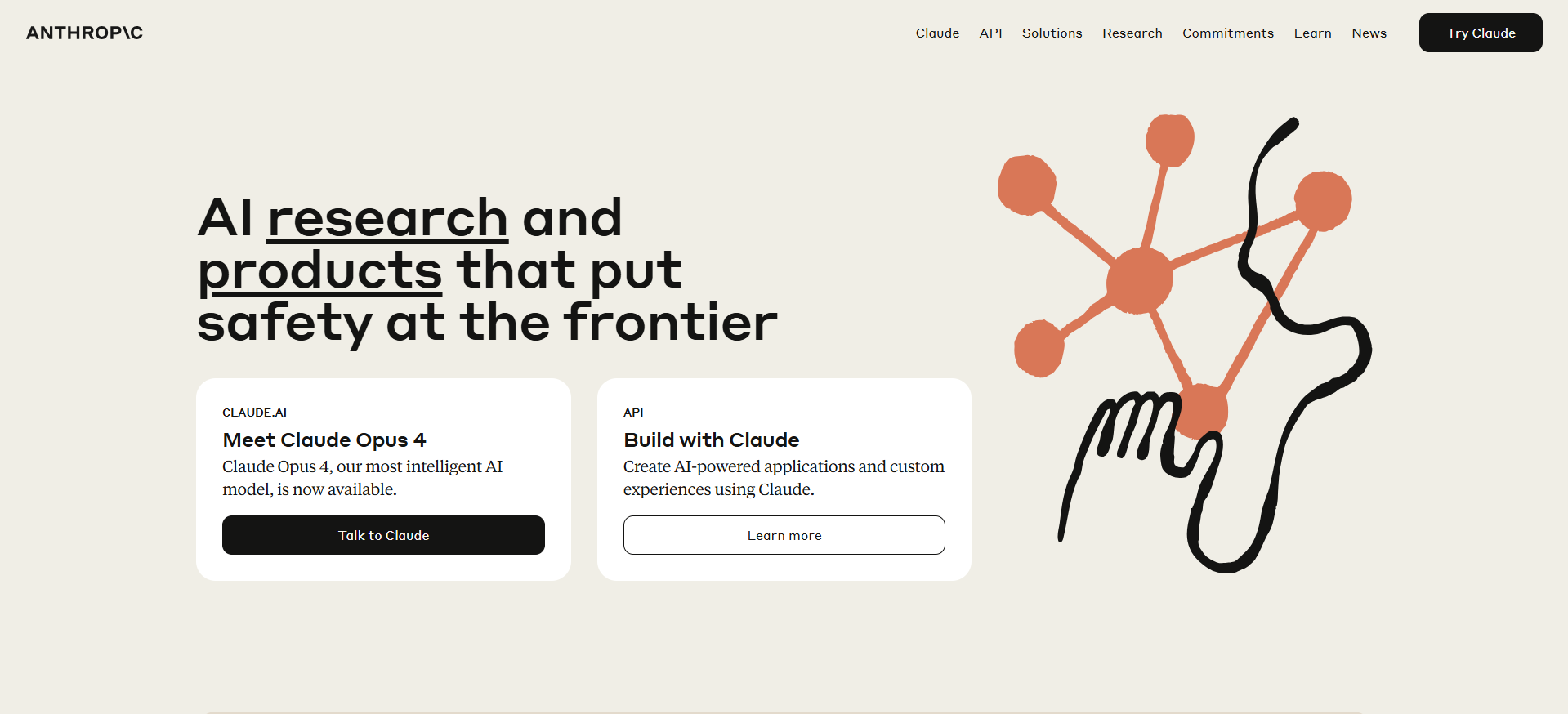
### Step 1: Navigate to Anthropic Console
Go to [**anthropic.com**](https://www.anthropic.com) or directly to the [Console](https://console.anthropic.com).
 ### Step 2: Access the API Console
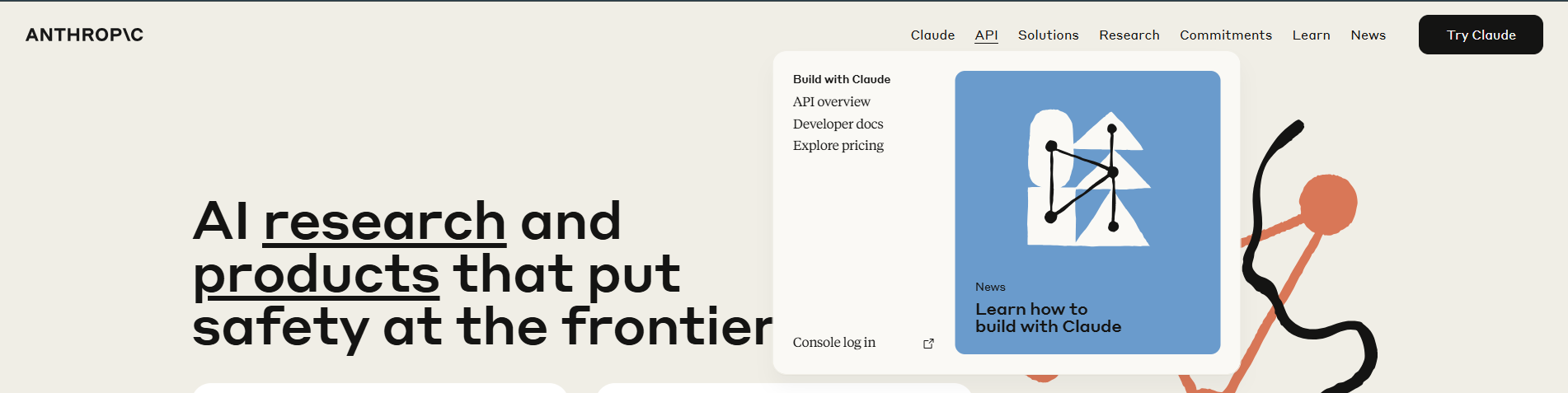
**From Homepage:**
* Hover over **"API"** in the top navigation
* Click **"Console"** from the dropdown menu
**Direct Access:**
* Go straight to [console.anthropic.com](https://console.anthropic.com)
### Step 2: Access the API Console
**From Homepage:**
* Hover over **"API"** in the top navigation
* Click **"Console"** from the dropdown menu
**Direct Access:**
* Go straight to [console.anthropic.com](https://console.anthropic.com)
 ### Step 3: Sign In or Create Account
**New User:**
* Click **"Sign up"** to create an Anthropic account
* Use email registration or **"Continue with Google"** for quick setup
* Complete email verification if required
**Existing User:**
* Sign in with your existing credentials
* Use saved login or Google authentication
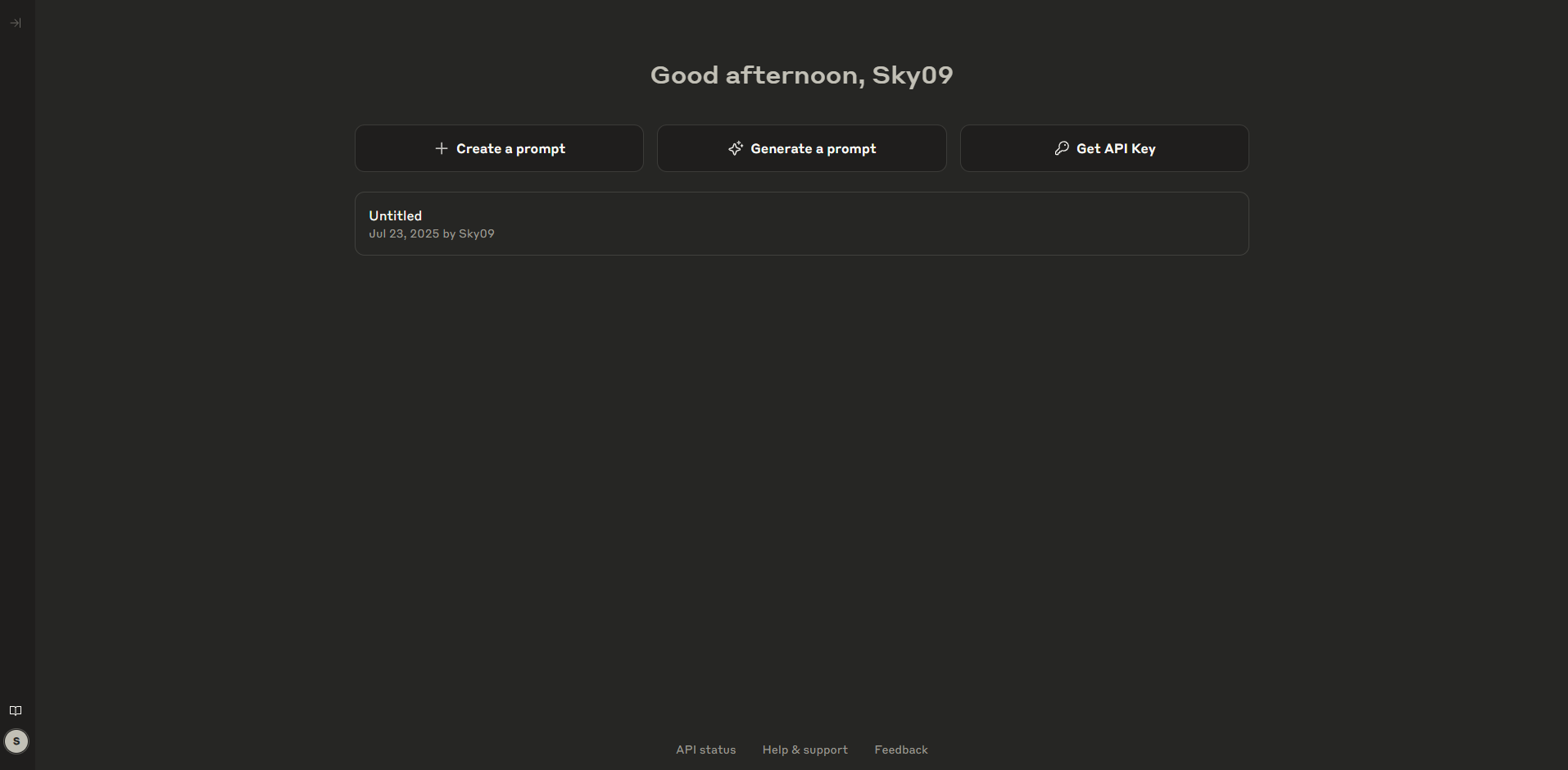
### Step 4: Console Dashboard Overview
After logging in, you'll see the main console with three options:
* **Create Prompt** – Build and test prompts for AI interactions
* **Generate a Prompt** – Use AI assistance to craft effective prompts
* **Get API Key** – Generate API keys for application integration
### Step 3: Sign In or Create Account
**New User:**
* Click **"Sign up"** to create an Anthropic account
* Use email registration or **"Continue with Google"** for quick setup
* Complete email verification if required
**Existing User:**
* Sign in with your existing credentials
* Use saved login or Google authentication
### Step 4: Console Dashboard Overview
After logging in, you'll see the main console with three options:
* **Create Prompt** – Build and test prompts for AI interactions
* **Generate a Prompt** – Use AI assistance to craft effective prompts
* **Get API Key** – Generate API keys for application integration
 ### Step 5: Generate Your API Key
Click **"Get API Key"** to access the key management interface.
### Step 6: Create New Key
Click the **orange "Create Key"** button to start the key generation process.
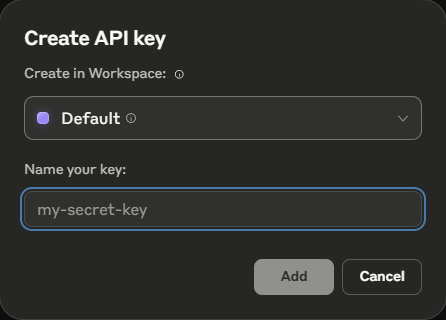
### Step 7: Name Your API Key
Provide a descriptive name that identifies the key's purpose:
**Good Examples:**
* `Weam Integration`
* `Production Chatbot`
* `Development Testing`
* `Analytics Dashboard`
* `Mobile App Backend`
### Step 5: Generate Your API Key
Click **"Get API Key"** to access the key management interface.
### Step 6: Create New Key
Click the **orange "Create Key"** button to start the key generation process.
### Step 7: Name Your API Key
Provide a descriptive name that identifies the key's purpose:
**Good Examples:**
* `Weam Integration`
* `Production Chatbot`
* `Development Testing`
* `Analytics Dashboard`
* `Mobile App Backend`
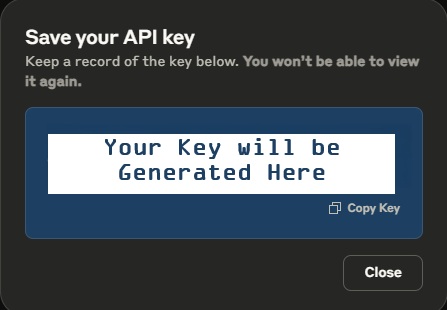
 ### Step 8: Secure Your Key
1. Click **"Create Key"** after naming it
2. **Copy the key immediately** using the copy button
3. **Store securely** in a password manager or secure environment
4. **This is your only chance** – you won't see the full key again
### Step 8: Secure Your Key
1. Click **"Create Key"** after naming it
2. **Copy the key immediately** using the copy button
3. **Store securely** in a password manager or secure environment
4. **This is your only chance** – you won't see the full key again
 ### Step 9: Complete Setup
Click **"Finish"** after securely copying your key to confirm the process is complete.
### Step 10: Add to Weam
Now integrate your Anthropic API key with Weam:
1. Open Weam and go to **Settings** → **Configurations**
2. Select **Anthropic** as your provider
3. Paste your API key in the configuration field
4. Save and test the connection with a chat message
## API Management Dashboard
The comprehensive API management interface provides full control over your keys and account.
### Step 9: Complete Setup
Click **"Finish"** after securely copying your key to confirm the process is complete.
### Step 10: Add to Weam
Now integrate your Anthropic API key with Weam:
1. Open Weam and go to **Settings** → **Configurations**
2. Select **Anthropic** as your provider
3. Paste your API key in the configuration field
4. Save and test the connection with a chat message
## API Management Dashboard
The comprehensive API management interface provides full control over your keys and account.
 ### Left Navigation Panel
| Section | Purpose |
| -------------------- | ------------------------------------------------- |
| **Profile** | Account and personal information settings |
| **Appearance** | Interface theme and display preferences |
| **Organization** | Organization-level settings and team management |
| **Workspaces** | Workspace management and collaboration |
| **Billing** | Payment methods, usage costs, billing history |
| **Limits** | API usage limits and rate limiting configurations |
| **API Keys** | Manage all your API keys |
| **Privacy Controls** | Data handling and privacy settings |
### API Keys Management Table
The main table displays all your API keys with:
| Column | Information |
| ---------------- | ---------------------------------------------------- |
| **KEY** | Key name/identifier (partially hidden for security) |
| **WORKSPACE** | Associated workspace (Default for personal accounts) |
| **CREATED BY** | User who generated the key |
| **CREATED AT** | Key generation timestamp |
| **LAST USED AT** | Most recent usage date |
| **COST** | Associated API usage costs |
### Key Management Actions
* **Create Key** – Generate additional API keys
* **Three-dot Menu** – Rename, delete, or manage individual keys
* **Workspace Filtering** – Organize keys by workspace
* **Usage Monitoring** – Track key performance and costs
***
### Left Navigation Panel
| Section | Purpose |
| -------------------- | ------------------------------------------------- |
| **Profile** | Account and personal information settings |
| **Appearance** | Interface theme and display preferences |
| **Organization** | Organization-level settings and team management |
| **Workspaces** | Workspace management and collaboration |
| **Billing** | Payment methods, usage costs, billing history |
| **Limits** | API usage limits and rate limiting configurations |
| **API Keys** | Manage all your API keys |
| **Privacy Controls** | Data handling and privacy settings |
### API Keys Management Table
The main table displays all your API keys with:
| Column | Information |
| ---------------- | ---------------------------------------------------- |
| **KEY** | Key name/identifier (partially hidden for security) |
| **WORKSPACE** | Associated workspace (Default for personal accounts) |
| **CREATED BY** | User who generated the key |
| **CREATED AT** | Key generation timestamp |
| **LAST USED AT** | Most recent usage date |
| **COST** | Associated API usage costs |
### Key Management Actions
* **Create Key** – Generate additional API keys
* **Three-dot Menu** – Rename, delete, or manage individual keys
* **Workspace Filtering** – Organize keys by workspace
* **Usage Monitoring** – Track key performance and costs
***