> ## Documentation Index
> Fetch the complete documentation index at: https://opensource.weam.ai/docs/llms.txt
> Use this file to discover all available pages before exploring further.
# Ollama Local Model Integration
> Run local AI models with Ollama and use them inside Weam.ai
## Overview
**Weam.ai supports Ollama**, enabling you to run AI models locally on your machine for maximum privacy and control. This guide walks you through the complete setup process.
## What is Ollama?
Ollama is a lightweight runtime for serving local LLMs (like `llama3`, `qwen2`, `mistral`) through a simple HTTP API. It allows you to run powerful AI models without sending data to external servers.
## Prerequisites
* Docker Desktop installed and running
* Weam repository set up locally
## Step 1: Start Ollama Service
Run this command in your terminal to start the Ollama service:
```bash theme={null}
docker compose -f nextjs/docker-compose.ollama.yml --profile cpu up -d
```
> **Note:** The initial download may take several minutes depending on your internet connection.
To stop the service later:
```bash theme={null}
docker compose -f nextjs/docker-compose.ollama.yml --profile cpu down
```
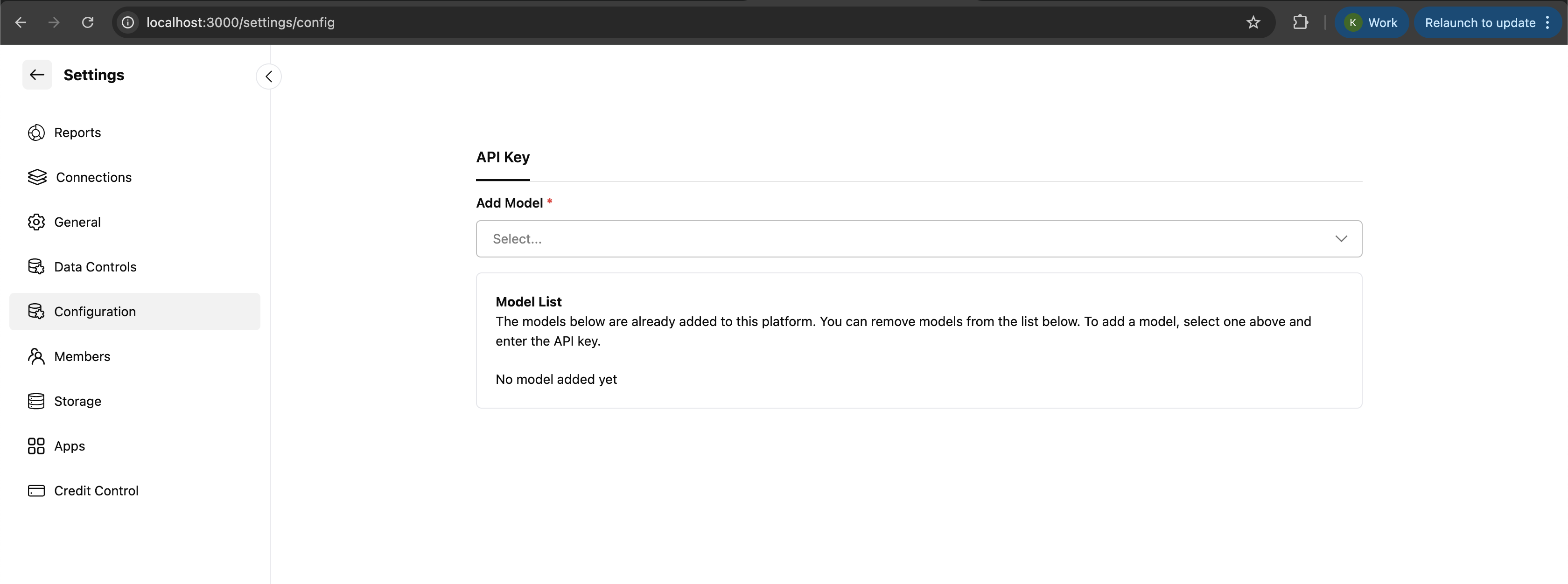
## Step 2: Configure Ollama in Weam
Follow these steps to connect Ollama to Weam:
1. **Navigate to Settings**
* Go to **Settings** → **Configuration**
 3. **Add New Model**
* Click **Add Model**
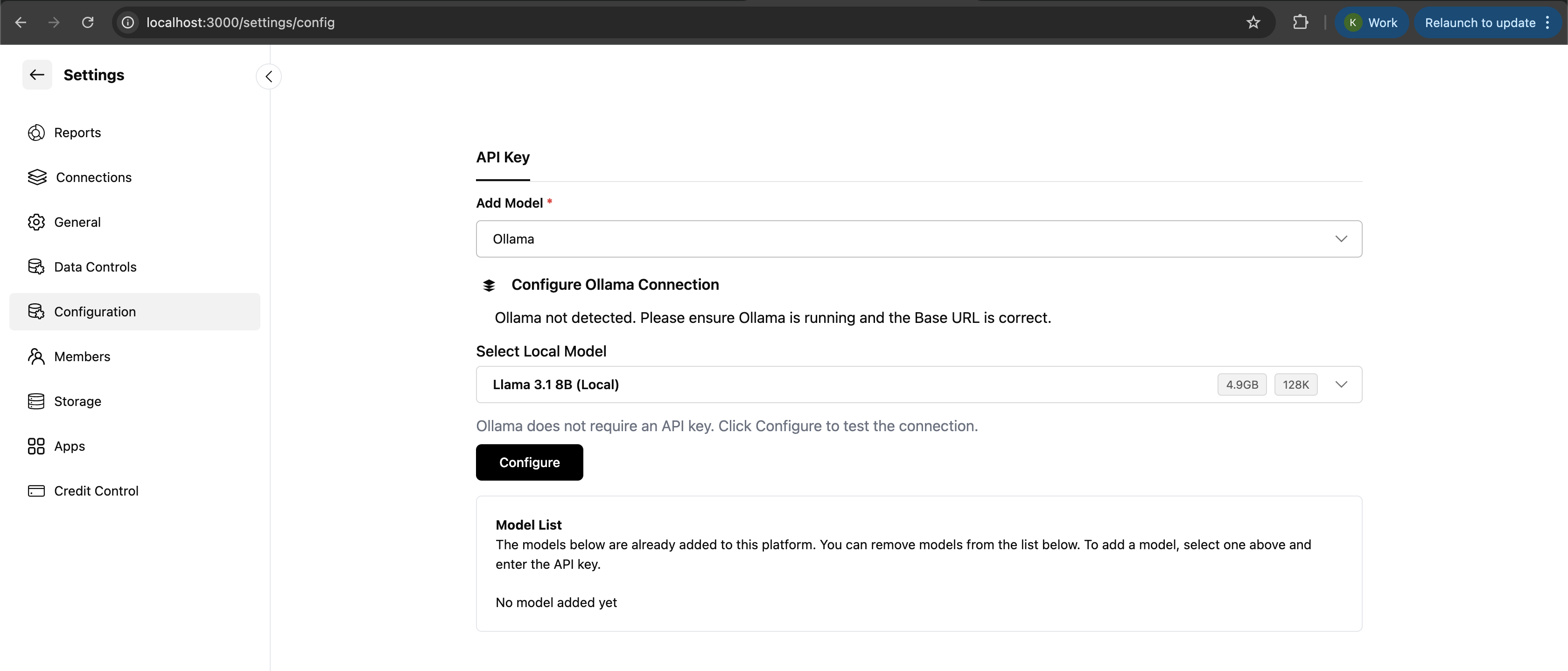
4. **Select Ollama Provider**
* Select **Ollama** as the provider
5. **Choose Your Model**
* Click **Select Local Model**
* Choose your desired Llama model (e.g., `llama3`, `qwen2`, `mistral`)
6. **Configure and Download**
* Click **Configure**
* The model will be automatically downloaded and linked to Weam
3. **Add New Model**
* Click **Add Model**
4. **Select Ollama Provider**
* Select **Ollama** as the provider
5. **Choose Your Model**
* Click **Select Local Model**
* Choose your desired Llama model (e.g., `llama3`, `qwen2`, `mistral`)
6. **Configure and Download**
* Click **Configure**
* The model will be automatically downloaded and linked to Weam
 **You must add an OpenAI API key to see Llama models in the dropdown menu.** Without a valid OpenAI API key, the Ollama models will not appear in the model selection dropdown.
## Step 3: Verify Your Setup
After configuration, verify that everything is working correctly:
1. **Check Ollama Service**
```bash theme={null}
docker ps
```
You should see an Ollama container running.
2. **Test Model Availability**
```bash theme={null}
curl http://localhost:11434/api/tags
```
This should return a JSON response with your installed models.
3. **Test in Weam**
* Open a new chat in Weam
* Select your configured Ollama model
* Send a simple message like "Hello, how are you?"
* Verify the response comes from your local model
## Available Models
Ollama supports many popular models. Here are some recommended options:
### Large Language Models
* **llama3** - Meta's latest Llama model (8B, 70B variants)
* **llama3.1** - Updated version with improved performance
* **qwen2** - Alibaba's Qwen series (7B, 14B, 72B variants)
* **mistral** - Mistral AI's efficient models (7B, 8x7B variants)
* **codellama** - Code-specialized Llama model
* **phi3** - Microsoft's compact but capable model
### Model Selection Tips
* **For general use**: Start with `llama3` (8B) - good balance of performance and resource usage
* **For coding tasks**: Use `codellama` or `qwen2-coder`
* **For resource-constrained systems**: Try `phi3` or `mistral` (7B)
* **For maximum capability**: Use `llama3` (70B) if you have sufficient RAM
## Resource Requirements
Different models have different resource requirements:
| Model | RAM Required | Storage | Best For |
| ------------ | ------------ | ------- | ------------------------- |
| llama3 (8B) | 8-16 GB | \~5 GB | General use, good balance |
| llama3 (70B) | 40+ GB | \~40 GB | Maximum capability |
| qwen2 (7B) | 6-12 GB | \~4 GB | Multilingual tasks |
| mistral (7B) | 6-12 GB | \~4 GB | Efficient, fast |
| phi3 (3.8B) | 4-8 GB | \~2 GB | Lightweight option |
## Troubleshooting
### Common Issues and Solutions
**Ollama container won't start**
* Ensure Docker Desktop is running
* Check if port `11434` is already in use
* Try: `docker compose -f nextjs/docker-compose.ollama.yml --profile cpu down` then restart
**Models not appearing in Weam dropdown**
* Verify you have added an OpenAI API key
* Check that Ollama service is running
* Restart Weam after adding the API key
**Slow model responses**
* Check available RAM - models need sufficient memory
* Consider using a smaller model if resources are limited
* Close other memory-intensive applications
**Model download fails**
* Check internet connection
* Ensure sufficient disk space
* Try downloading manually: `docker exec -it ollama pull llama3`
### Checking Logs
To troubleshoot issues, check the logs:
```bash theme={null}
# Check Ollama container logs
docker logs
# Check Weam logs
docker logs
```
## Performance Optimization
### For Better Performance
1. **Allocate More Resources**
* Increase Docker memory allocation in Docker Desktop settings
* Ensure your system has sufficient RAM for the model size
2. **Model Selection**
* Use quantized models when available (e.g., `llama3:8b-instruct-q4_0`)
* Start with smaller models and scale up as needed
3. **System Optimization**
* Close unnecessary applications
* Use SSD storage for better I/O performance
* Ensure good cooling for sustained performance
## Security and Privacy
### Data Privacy Benefits
* **Local Processing**: All AI inference happens on your machine
* **No Data Transmission**: Your prompts and responses never leave your system
* **Full Control**: You control the model, data, and processing environment
* **Compliance**: Easier to meet data privacy regulations
### Security Considerations
* Keep your system updated with security patches
* Use strong authentication for Weam access
* Consider network isolation if running in production
* Regularly update Ollama and model versions
## That's It!
Once configured, you can use your local Ollama models in Weam chats, agents, and prompts. All inference will run locally on your machine, keeping your data private and giving you complete control over your AI experience.
⭐ Star us on [GitHub](https://github.com/Weam-ai/Weam)
**You must add an OpenAI API key to see Llama models in the dropdown menu.** Without a valid OpenAI API key, the Ollama models will not appear in the model selection dropdown.
## Step 3: Verify Your Setup
After configuration, verify that everything is working correctly:
1. **Check Ollama Service**
```bash theme={null}
docker ps
```
You should see an Ollama container running.
2. **Test Model Availability**
```bash theme={null}
curl http://localhost:11434/api/tags
```
This should return a JSON response with your installed models.
3. **Test in Weam**
* Open a new chat in Weam
* Select your configured Ollama model
* Send a simple message like "Hello, how are you?"
* Verify the response comes from your local model
## Available Models
Ollama supports many popular models. Here are some recommended options:
### Large Language Models
* **llama3** - Meta's latest Llama model (8B, 70B variants)
* **llama3.1** - Updated version with improved performance
* **qwen2** - Alibaba's Qwen series (7B, 14B, 72B variants)
* **mistral** - Mistral AI's efficient models (7B, 8x7B variants)
* **codellama** - Code-specialized Llama model
* **phi3** - Microsoft's compact but capable model
### Model Selection Tips
* **For general use**: Start with `llama3` (8B) - good balance of performance and resource usage
* **For coding tasks**: Use `codellama` or `qwen2-coder`
* **For resource-constrained systems**: Try `phi3` or `mistral` (7B)
* **For maximum capability**: Use `llama3` (70B) if you have sufficient RAM
## Resource Requirements
Different models have different resource requirements:
| Model | RAM Required | Storage | Best For |
| ------------ | ------------ | ------- | ------------------------- |
| llama3 (8B) | 8-16 GB | \~5 GB | General use, good balance |
| llama3 (70B) | 40+ GB | \~40 GB | Maximum capability |
| qwen2 (7B) | 6-12 GB | \~4 GB | Multilingual tasks |
| mistral (7B) | 6-12 GB | \~4 GB | Efficient, fast |
| phi3 (3.8B) | 4-8 GB | \~2 GB | Lightweight option |
## Troubleshooting
### Common Issues and Solutions
**Ollama container won't start**
* Ensure Docker Desktop is running
* Check if port `11434` is already in use
* Try: `docker compose -f nextjs/docker-compose.ollama.yml --profile cpu down` then restart
**Models not appearing in Weam dropdown**
* Verify you have added an OpenAI API key
* Check that Ollama service is running
* Restart Weam after adding the API key
**Slow model responses**
* Check available RAM - models need sufficient memory
* Consider using a smaller model if resources are limited
* Close other memory-intensive applications
**Model download fails**
* Check internet connection
* Ensure sufficient disk space
* Try downloading manually: `docker exec -it ollama pull llama3`
### Checking Logs
To troubleshoot issues, check the logs:
```bash theme={null}
# Check Ollama container logs
docker logs
# Check Weam logs
docker logs
```
## Performance Optimization
### For Better Performance
1. **Allocate More Resources**
* Increase Docker memory allocation in Docker Desktop settings
* Ensure your system has sufficient RAM for the model size
2. **Model Selection**
* Use quantized models when available (e.g., `llama3:8b-instruct-q4_0`)
* Start with smaller models and scale up as needed
3. **System Optimization**
* Close unnecessary applications
* Use SSD storage for better I/O performance
* Ensure good cooling for sustained performance
## Security and Privacy
### Data Privacy Benefits
* **Local Processing**: All AI inference happens on your machine
* **No Data Transmission**: Your prompts and responses never leave your system
* **Full Control**: You control the model, data, and processing environment
* **Compliance**: Easier to meet data privacy regulations
### Security Considerations
* Keep your system updated with security patches
* Use strong authentication for Weam access
* Consider network isolation if running in production
* Regularly update Ollama and model versions
## That's It!
Once configured, you can use your local Ollama models in Weam chats, agents, and prompts. All inference will run locally on your machine, keeping your data private and giving you complete control over your AI experience.
⭐ Star us on [GitHub](https://github.com/Weam-ai/Weam)